

LinkyFlow — autonomous agents and live business data in Excel or on the webLinkyFlow
LinkyFlow · Stripe

Stripe. Reconciled, in Excel or on the web.

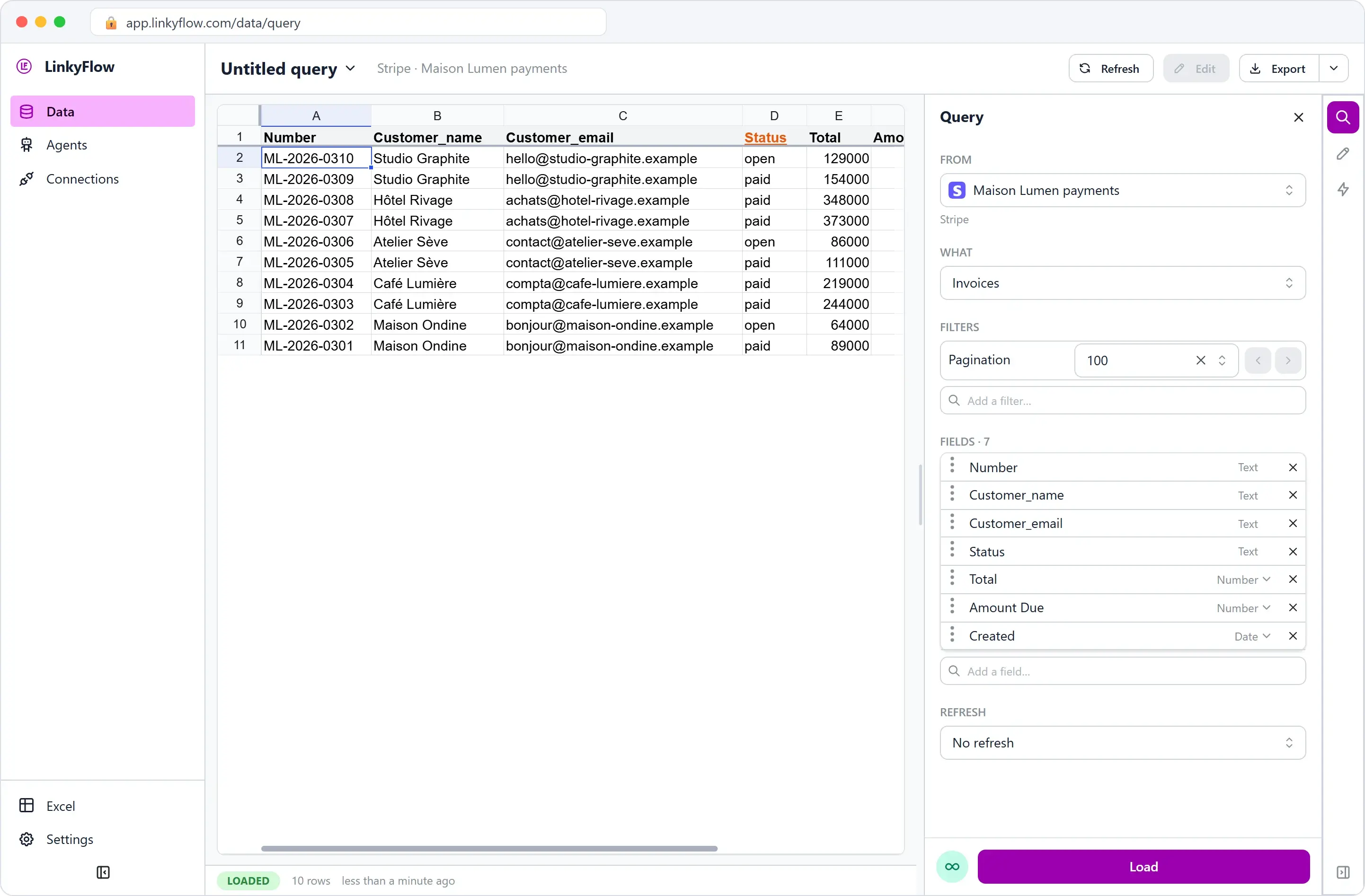
Know which Shopify sales Stripe actually paid, and what each one cost in fees, without lining up two exports. An agent checks every Shopify sale paid through Stripe against the real payment, fee and net every hour, read-only. Customers, invoices, subscriptions and payouts load into Excel or the web app, where you edit rows and publish supported changes back to Stripe.

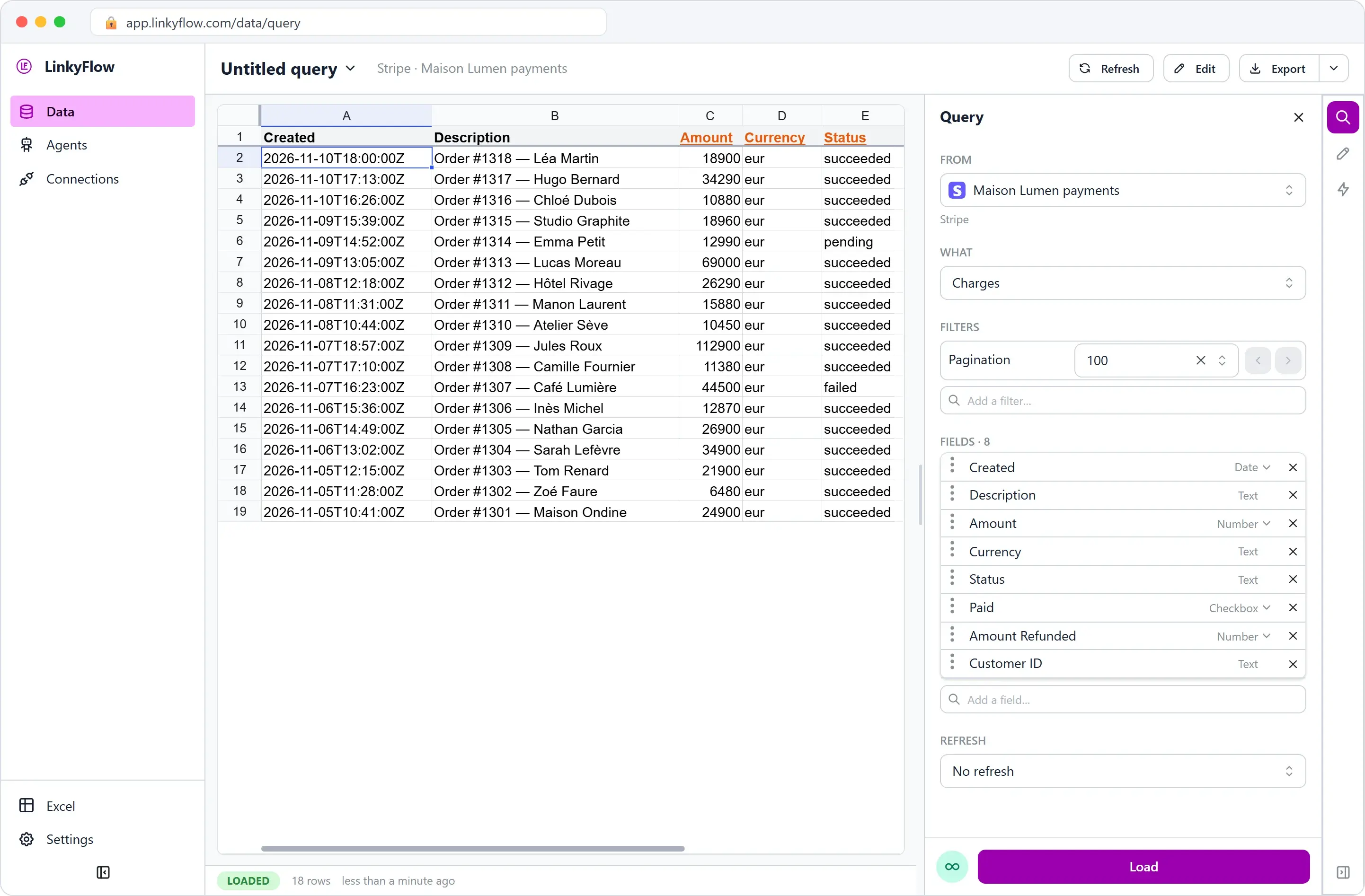
Stripe payments loaded in the LinkyFlow web app

Agent

Shopify + Stripe reconciliation every hour

Excel + Web

the same live tables in both

33

Stripe queries available

Agents that work with Stripe.

They run every hour on your connected account, report what needs attention, and their results open in Excel or in the web app.

  • Shopify
  • Stripe

Shopify + Stripe Reconciliation Agent

Matches every Shopify transaction paid through Stripe with the real Stripe payment, fee and net amount — and flags what does not reconcile.

  • Missing Stripe payments
  • Amount and currency mismatches
  • Refunds not recorded in Shopify
View agent
Browse all agents

Every Stripe object. One workbook.

Customers, products, prices, invoices, subscriptions, payment intents, charges, refunds, payouts and what each payout is made of, balance transactions, disputes, credit notes, quotes, coupons and tax rates — all available as structured Excel queries.

Customers
Products
Prices
Invoices
Invoice items
Subscriptions
Payment intents
Charges
Refunds
Payouts
Payout reconciliation
Balance transactions
Disputes
Credit notes
Quotes
Coupons
Promotion codes
Tax rates
+ more

From billing to reconciliation.

The loop of exporting CSVs from the Stripe Dashboard, editing in a spreadsheet, and re-importing disappears. LinkyFlow makes it a single connected workbook workflow over the Stripe REST API.

Create and update customers, invoices, and prices in rows

Add customers, draft invoices, and adjust prices across hundreds of rows in Excel, then publish in one batch. Amounts are entered in the smallest currency unit (cents) — exactly what Stripe expects.

Stripe invoices in the LinkyFlow spreadsheet view
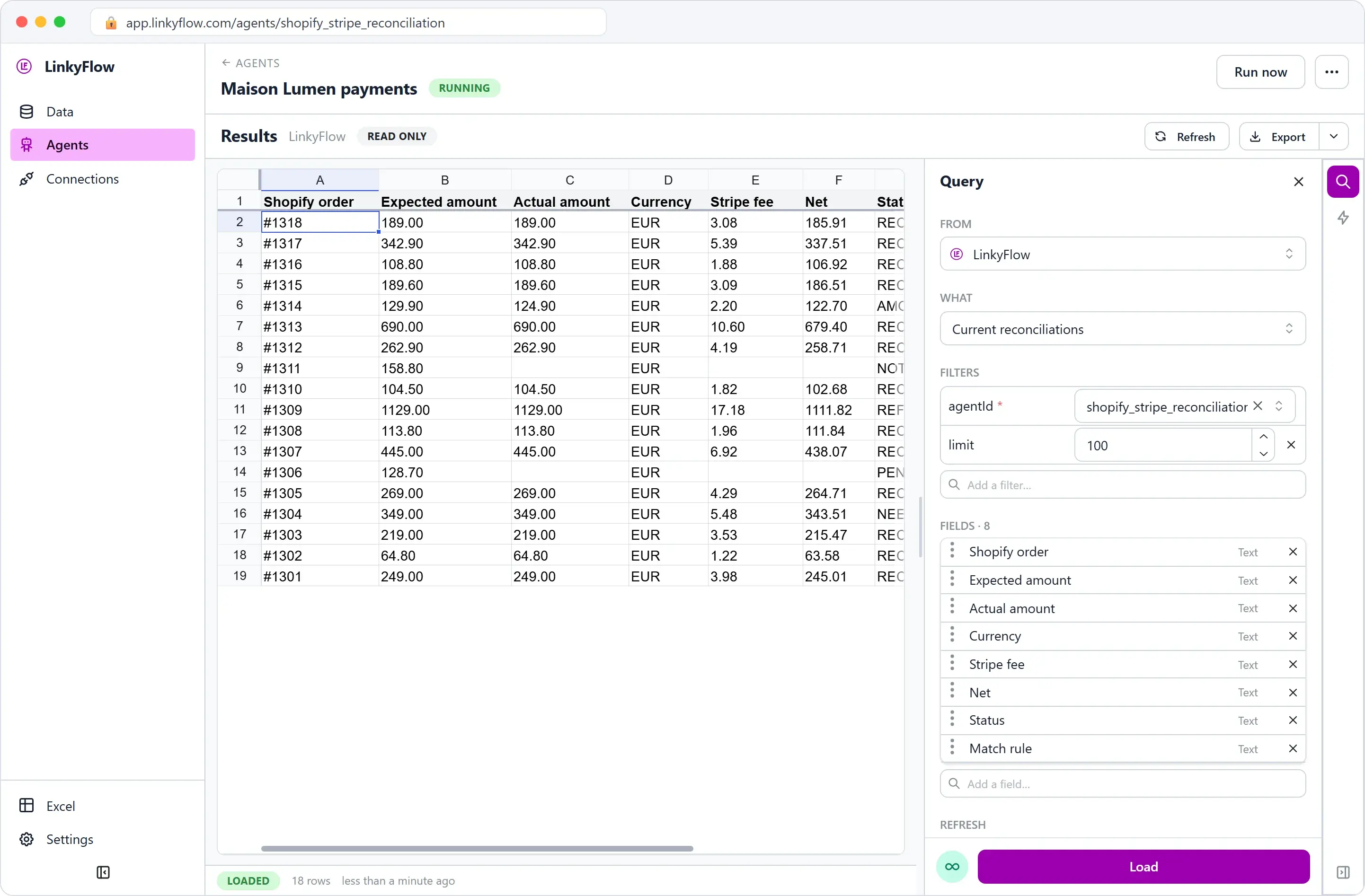
Shopify orders reconciled against Stripe payments in LinkyFlow

See which sales reconciled — and which did not

The agent’s results open as a live table: each Shopify order with its expected and actual amount, the Stripe fee, the net and the rule that proved the pairing. Amount and refund mismatches stay visible next to the rows that settled.

See what each payout is made of

Load Payout Reconciliation for one payout: a row per charge, refund and fee it pays out, with the gross, the fee and the net. Next to the agent’s reconciliations, each charge finds its Shopify order. A whole account loads too — pick "All results" and Stripe’s pagination is handled for you.

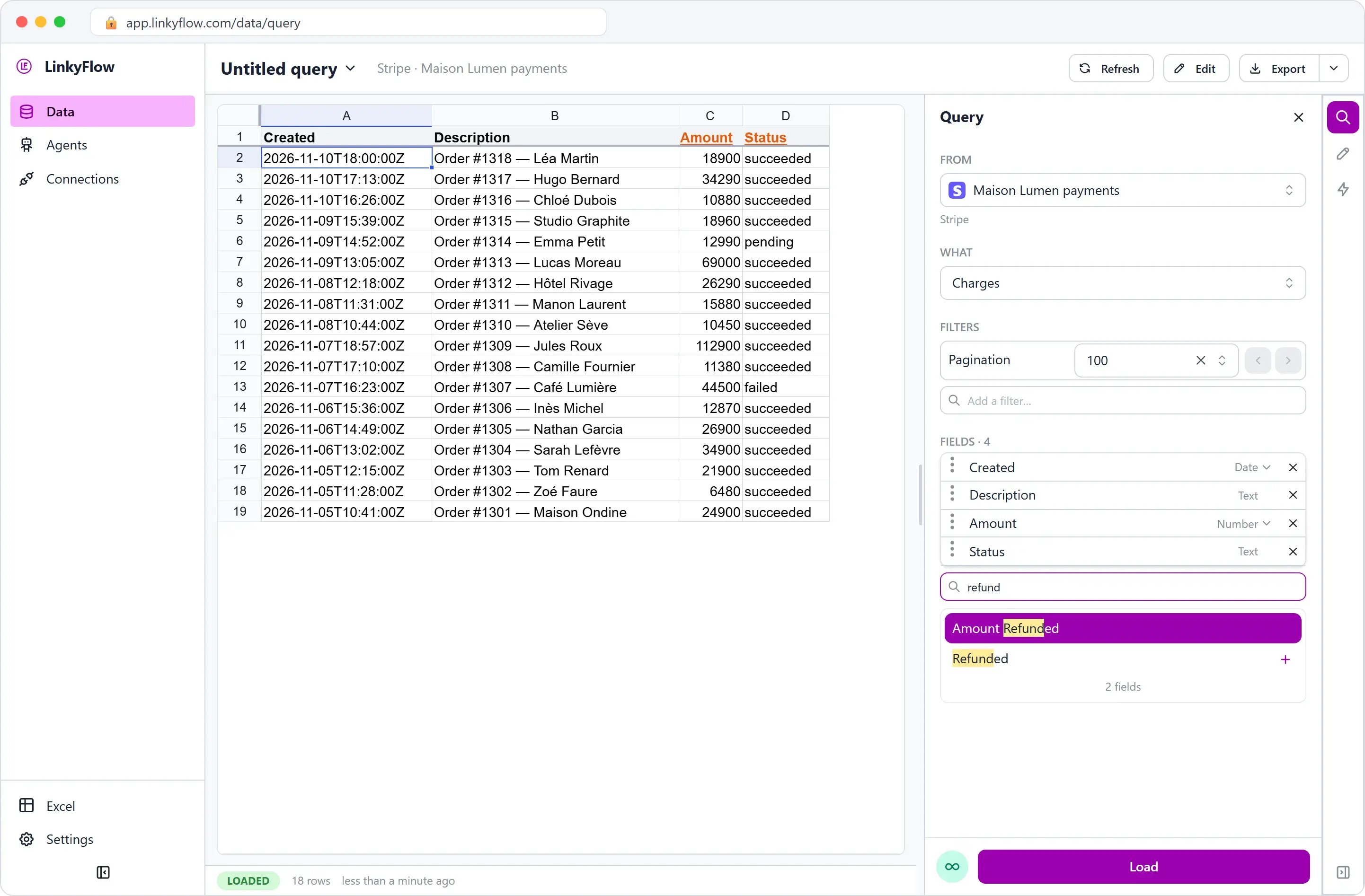
Stripe charges query with pagination and field selection in LinkyFlow
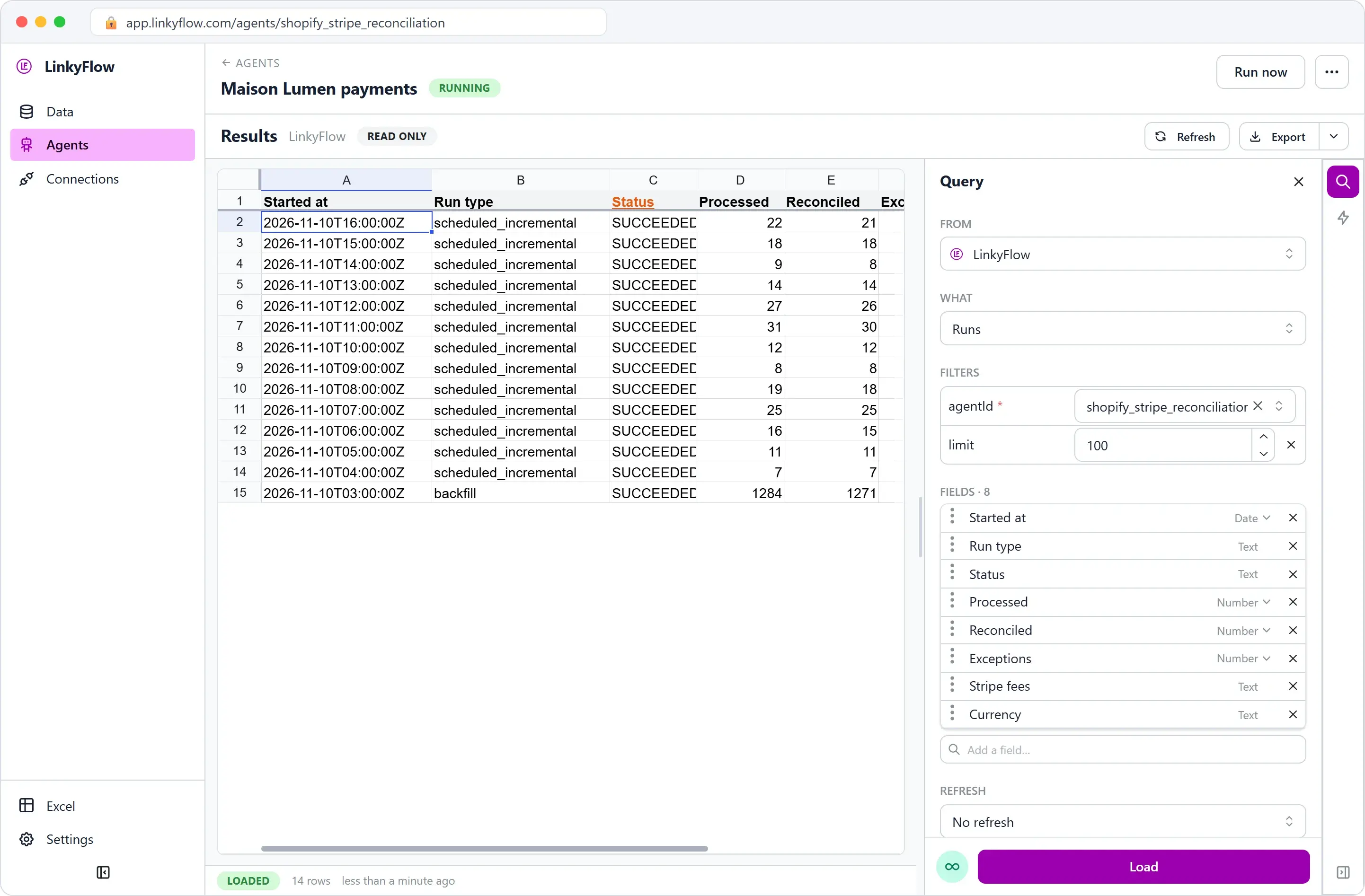
Shopify + Stripe Reconciliation agent overview in LinkyFlow

An hourly check you can audit

Every run is listed with what it processed, reconciled and flagged, next to where all your sales stand today — reconciled, pending or needing attention.

From install to first publish.

STEP 01

~2 min

Copy your secret key

In the Stripe Dashboard → Developers → API keys, copy your secret key (or create a restricted key with only the scopes you need).

STEP 02

~2 min

Connect in Excel or on the web

Add a Stripe connection and paste your secret key — in the web app or in the LinkyFlow add-in.

STEP 03

~30 s

Load and publish

Pick a query, load customers or invoices, edit rows, and publish supported updates back to Stripe.

Go further, step by step.

Get started with Stripe in LinkyFlow

Connect Stripe to Excel: load customers, invoices, subscriptions, charges and payouts, update them in bulk, and follow your revenue on ready-made dashboards.

Read →

Stripe connection setup

Copy a Stripe secret or restricted key, add the connection in Excel or the web app, and load your first customers or invoices, test mode keys included.

Read →

Stripe customers and invoices in Excel

Load Stripe customers and invoices into Excel, create or update them in bulk, then finalize, pay, void or delete each invoice from the Actions pane.

Read →

Stripe subscriptions and prices in Excel

Track Stripe subscriptions and their renewal dates in Excel, create or cancel them, and manage the products and recurring prices behind them from rows.

Read →

Stripe revenue and payouts in Excel

Build the Stripe revenue dashboard in Excel, with gross, refunded and net, then read the fees and the charges, refunds and fees behind each Stripe payout.

Read →

Reconcile Shopify with Stripe payments and fees

How a read-only agent pairs each Shopify transaction paid through Stripe with its Stripe payment, records the real fee and net, and opens a case for every gap.

Read →

Stripe payouts, fees and net in Excel, automatically

Load Stripe payouts, balance transactions and the breakdown of each payout into Excel, with gross, fee and net per line, refreshed on a schedule.

Read →

Why Shopify sales don't match Stripe payouts

A month-end example that walks Shopify sales down to Stripe payouts: dates, fees, refunds, pending funds, currency, and the checks that tell timing from errors.

Read →

Your payments. Your spreadsheet.

Connect your Stripe account, let an agent reconcile it with Shopify, and manage billing in Excel or on the web.

Frequently asked questions

What Stripe data can LinkyFlow access?

Customers, products, prices, invoices, invoice items, subscriptions, payment intents, charges, refunds, payouts, coupons, promotion codes, tax rates, disputes, balance transactions, and events — all as Excel queries.

Can LinkyFlow publish bulk updates to Stripe?

Yes. Prepare changes in Excel rows and publish in batches via the Stripe REST API — create, update, and delete are supported where Stripe allows them.

What do I need to connect?

A Stripe account and a secret API key (live or test). A restricted key works too — grant only the resources you want LinkyFlow to read or write.

How are amounts handled?

Stripe stores money in the smallest currency unit (cents). Enter amounts in cents — €19.99 is 1999 — and LinkyFlow sends them through exactly as Stripe expects.

Does LinkyFlow reconcile my books?

Not your books. One thing, automatically: the Shopify + Stripe Reconciliation agent checks every Shopify sale paid through Stripe against the Stripe payment, every hour, and never writes to either account. Sales paid through another gateway are counted and skipped, and payouts are not reconciled by the agent: the rest of your Stripe data comes together in Excel or on the web for you to analyse.

Can I see which orders a payout paid?

Yes. Load Payout Reconciliation for that payout: one row per charge, refund and fee, with gross, fee and net. Put it next to the agent’s Current reconciliations and look up each charge: the ones the agent reconciled find their Shopify order.