
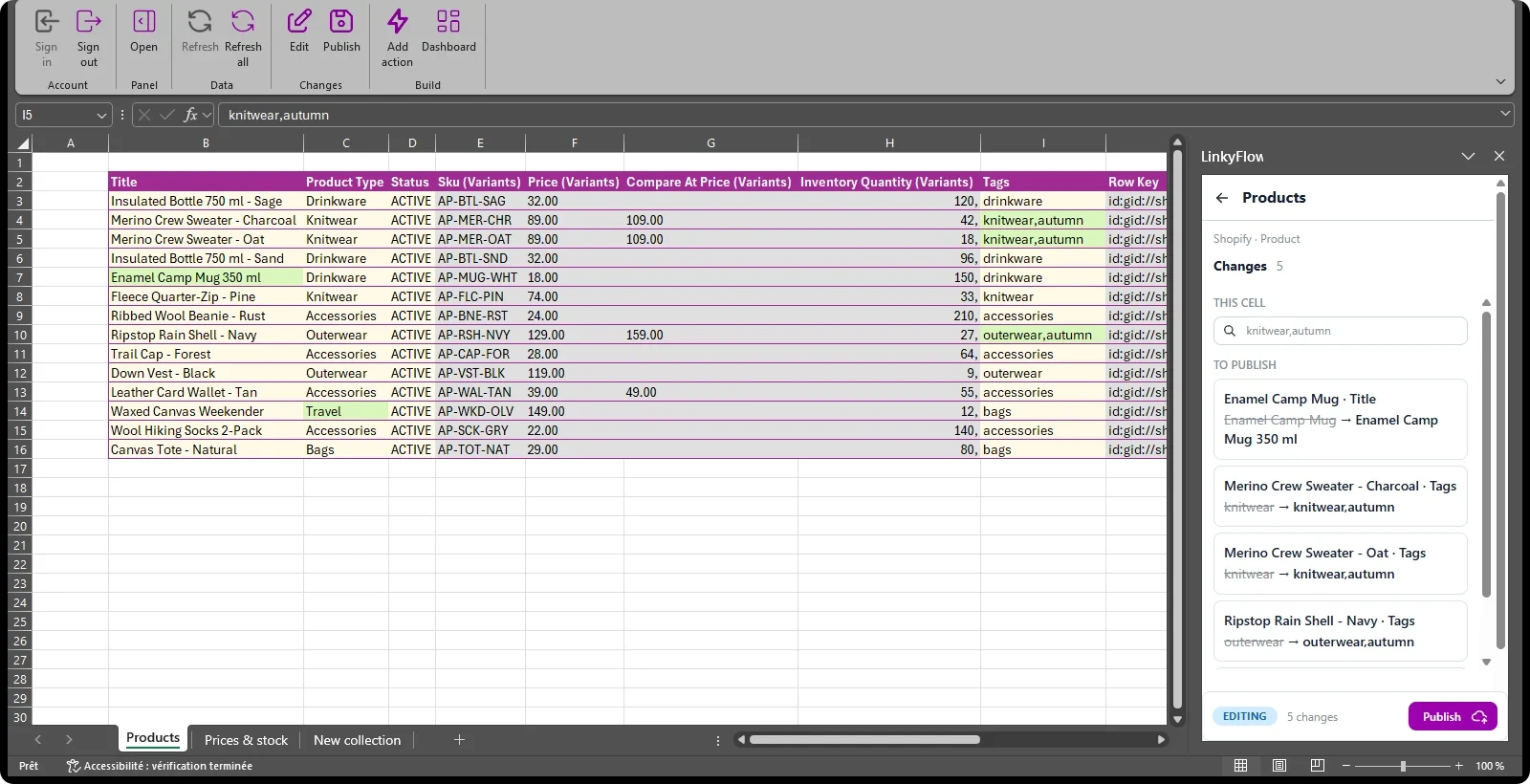
Bulk edit your Shopify catalog in Excel, then publish it back
LinkyFlow loads your Shopify products, variants and stock levels into a sheet — in Excel through the add-in, or in the browser in the LinkyFlow web app. You filter the rows, change the cells you mean to change, see every change listed beside its old value, and click Publish to write them to your store. Nothing reaches Shopify before that click, and Refresh reads back what Shopify holds. It never changes your store on its own: keeping a second store in step is the job of an agent (last section).
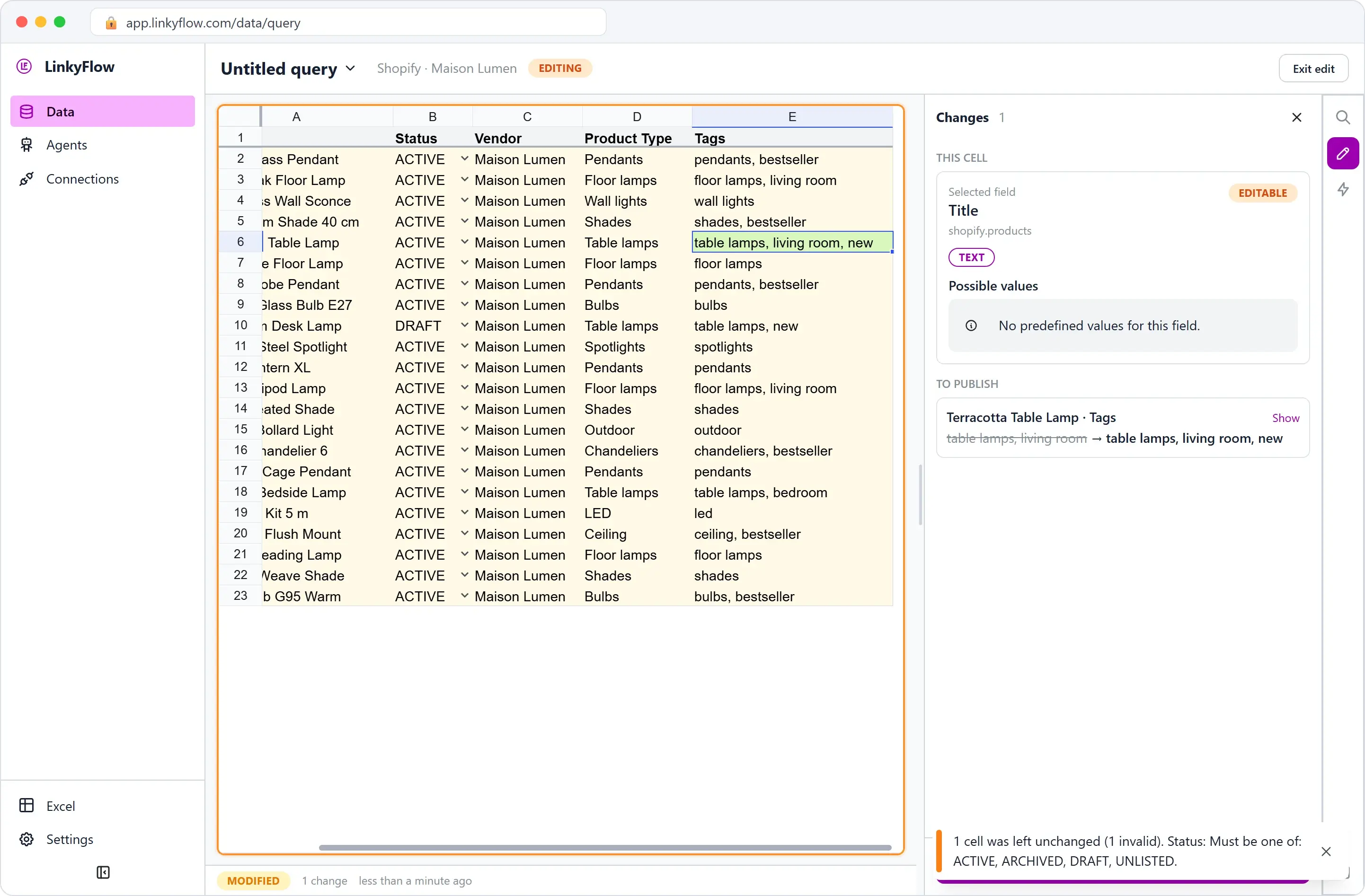
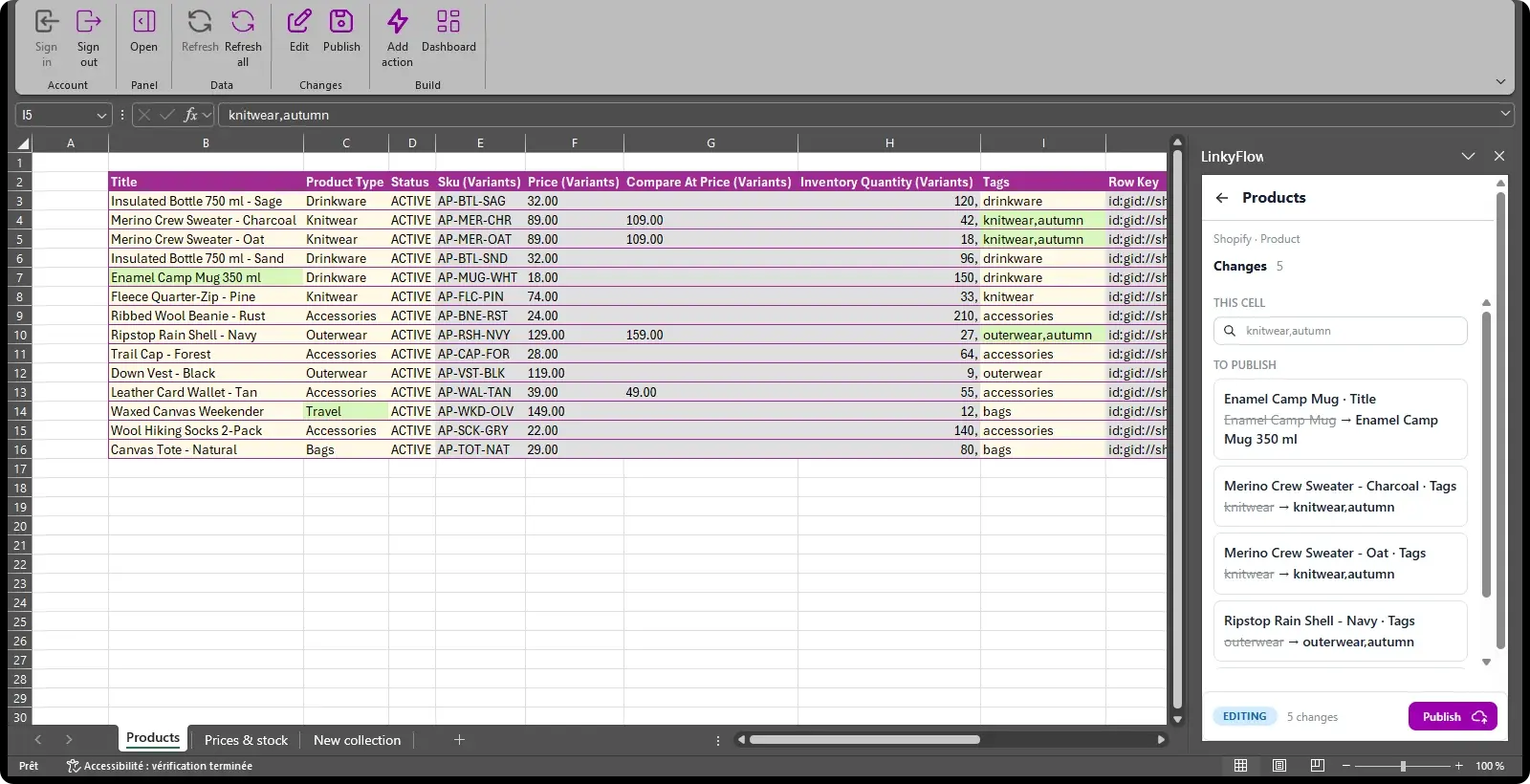
The screenshots below come from the LinkyFlow web app on a demo data set (a lighting store, Maison Lumen) and from the Excel add-in on our demo Shopify store, Alder & Pine. The web app and the add-in have the same Query panel and the same list of changes, so every step works in both.
What you need
- LinkyFlow installed on your store from the Shopify App Store: Install LinkyFlow for Shopify.
- The Excel add-in (Excel for Windows, Mac, iPad or the web), or the web app at app.linkyflow.com.
Which table holds what
| To change | Load in WHAT | Edit these columns |
|---|---|---|
| Titles, tags, product types, statuses | Product | Title, Tags, Product Type, Status |
| Prices and compare-at prices | Product Variant | Price, Compare At Price |
| Stock at a location | Inventory Level | the available quantity |
A variant's stock is not edited on Product Variant: Shopify keeps stock per location, and that is what an Inventory Level row is.
1. Load the catalog
In the Query panel, FROM is your store and WHAT is Product (or Product Variant). Under FIELDS, keep the columns you need; Add a field searches every field Shopify offers, nested ones included. Click Load.
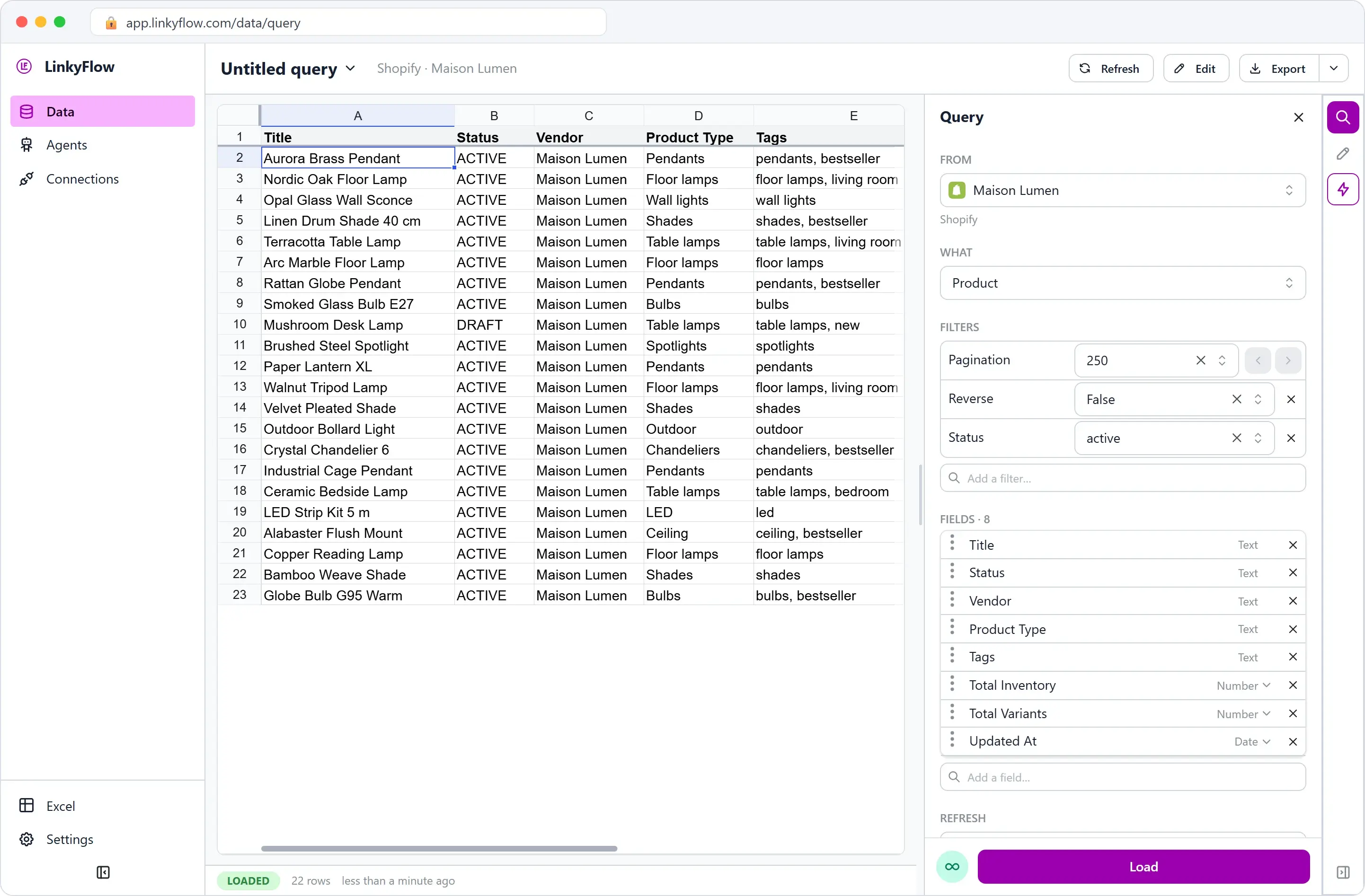
In Excel, the same panel sits in the LinkyFlow pane and Load writes the rows into the sheet. From the web app, Export sends the table to Excel as a workbook that stays connected, so Refresh keeps working there (Export and sync to Excel).
2. Filter down to the rows you mean to change
Filters run at Shopify, so only the matching rows come back:
- on Product: Status, Vendor, Product Type, Tag and Tag Not, Inventory Total, Is Price Reduced;
- on Product Variant: Sku, Product Type, Vendor, Tag, Product Status, Inventory Quantity.
Example: to reprice the pendants, load Product Variant with Product Type = Pendants and Product Status = active, and keep Display Name, Sku, Price and Compare At Price.
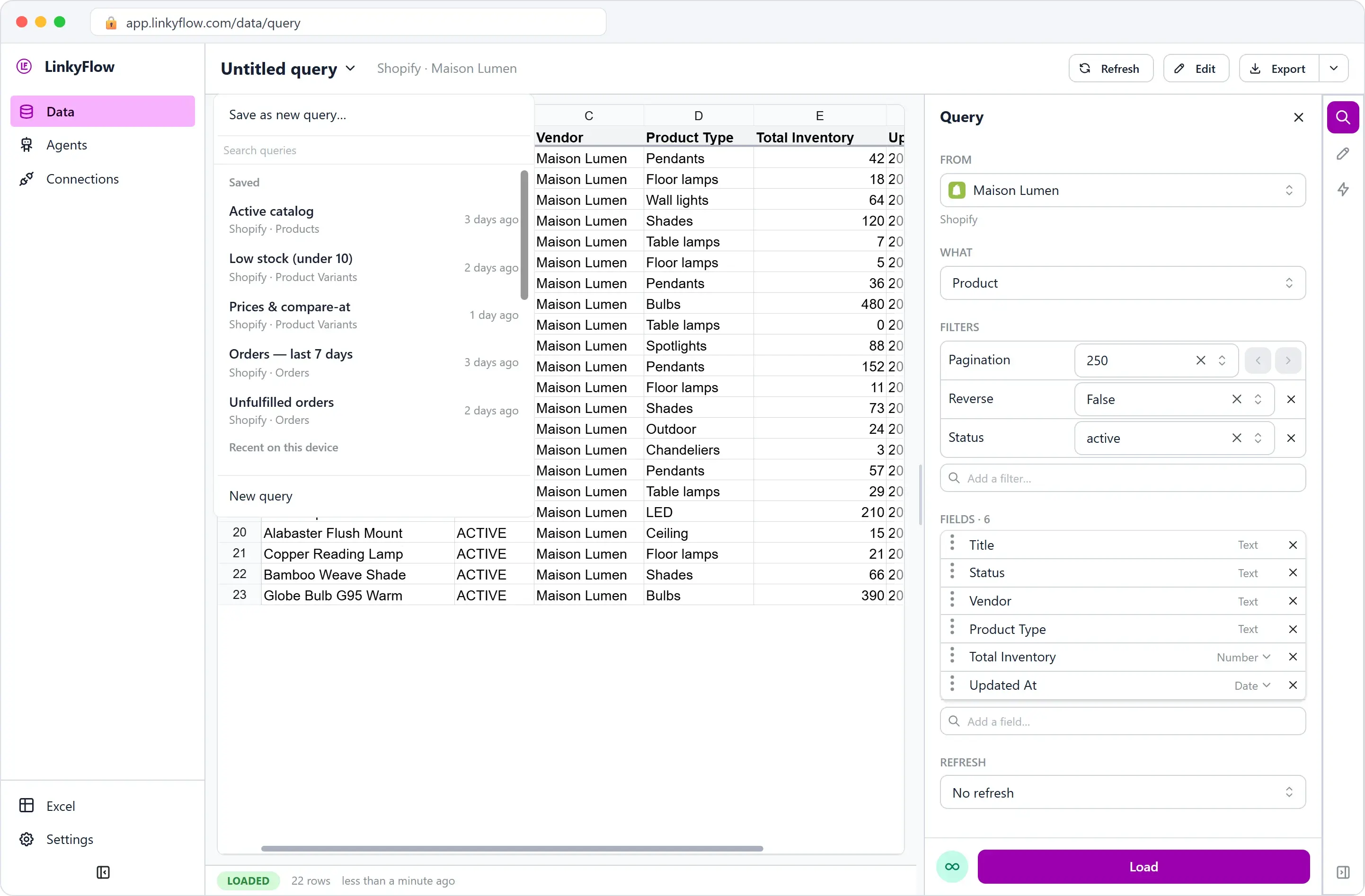
Save the query from its name's menu (Save as new query…): it comes back in that menu next time, and in Excel each sheet keeps its own query.
3. Edit in the sheet
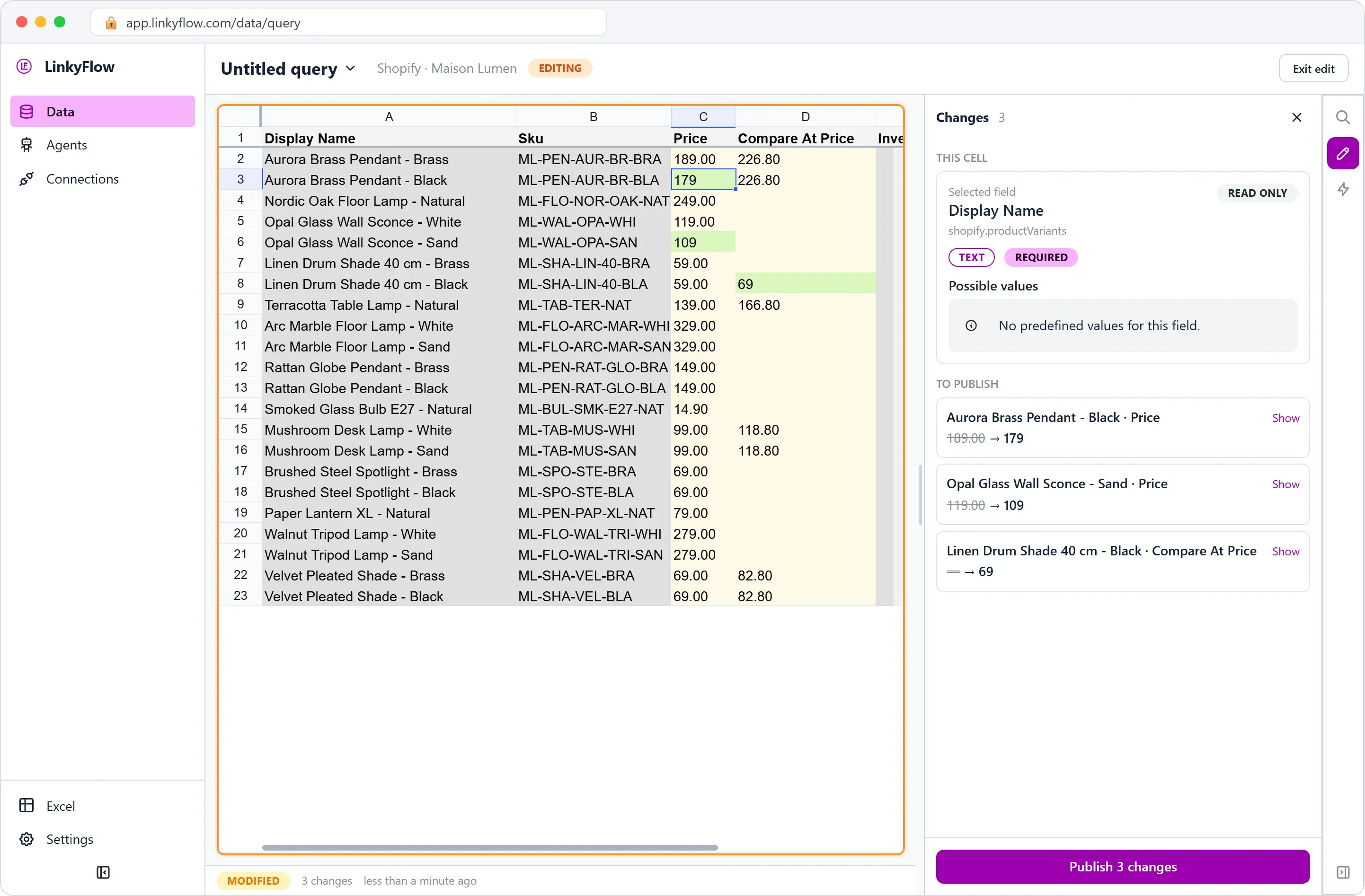
Click Edit (in Excel, Edit on the LinkyFlow tab of the ribbon). Type, paste a whole column, or compute new values in a free column and paste them into Price — =ROUND(C2*0.9,2) is 10 % off the price in C2. The Changes panel lists every edit by its record, the old value struck through beside the new one.
Three rules that save a failed publish:
- Decimals take a dot. A price is an exact decimal:
179or12.90.12,9 €is turned down where you type it, with Must be a number (use a dot for decimals: 12.9). A comma is never guessed as a decimal point. - An emptied cell is a value. Empty a compare-at price and publish: Shopify removes it. A Tags cell is the whole list, so keep the tags you want to keep.
- A value Shopify would refuse is refused as you type it. The cell keeps its value and the message says what is allowed — here, a status that is not ACTIVE, ARCHIVED, DRAFT or UNLISTED.
In Excel it is the same edit in the cells of the sheet, the same list in the LinkyFlow pane:
4. Stock, one location at a time
Load Inventory Level: one row per item stocked at a location — the store's primary location, or the one you pick in Location Id — with its SKU and its available quantity. Click Edit, type the new quantities, then publish.
A published quantity is set, not added: Shopify takes the number you typed. A sale made between your Load and your Publish is overwritten by that number, so load the stock right before you count or type it.
5. Publish, then check
Click Publish (on the web, the button says how many changes it sends). Then check:
- Stock: on a publish of up to ten rows, each row comes back with the quantity Shopify now holds. A larger publish runs as one bulk operation at Shopify and is not read back row by row: Refresh shows the result.
- Everything else: Refresh reads the rows from Shopify again. What the sheet then shows is what your store holds.
- Changed your mind before publishing? Exit edit discards every change not yet published.
Creating products instead of editing them
New products start from the catalog template: in the pane, Create, then Load template. One row per variant; the rows that share the same Product make one product with its options and variants. Title, description, vendor, type, tags, status and image come from a product's first row; Status is draft unless you type active; Stock goes to the store's first location, or to the one named in Location.
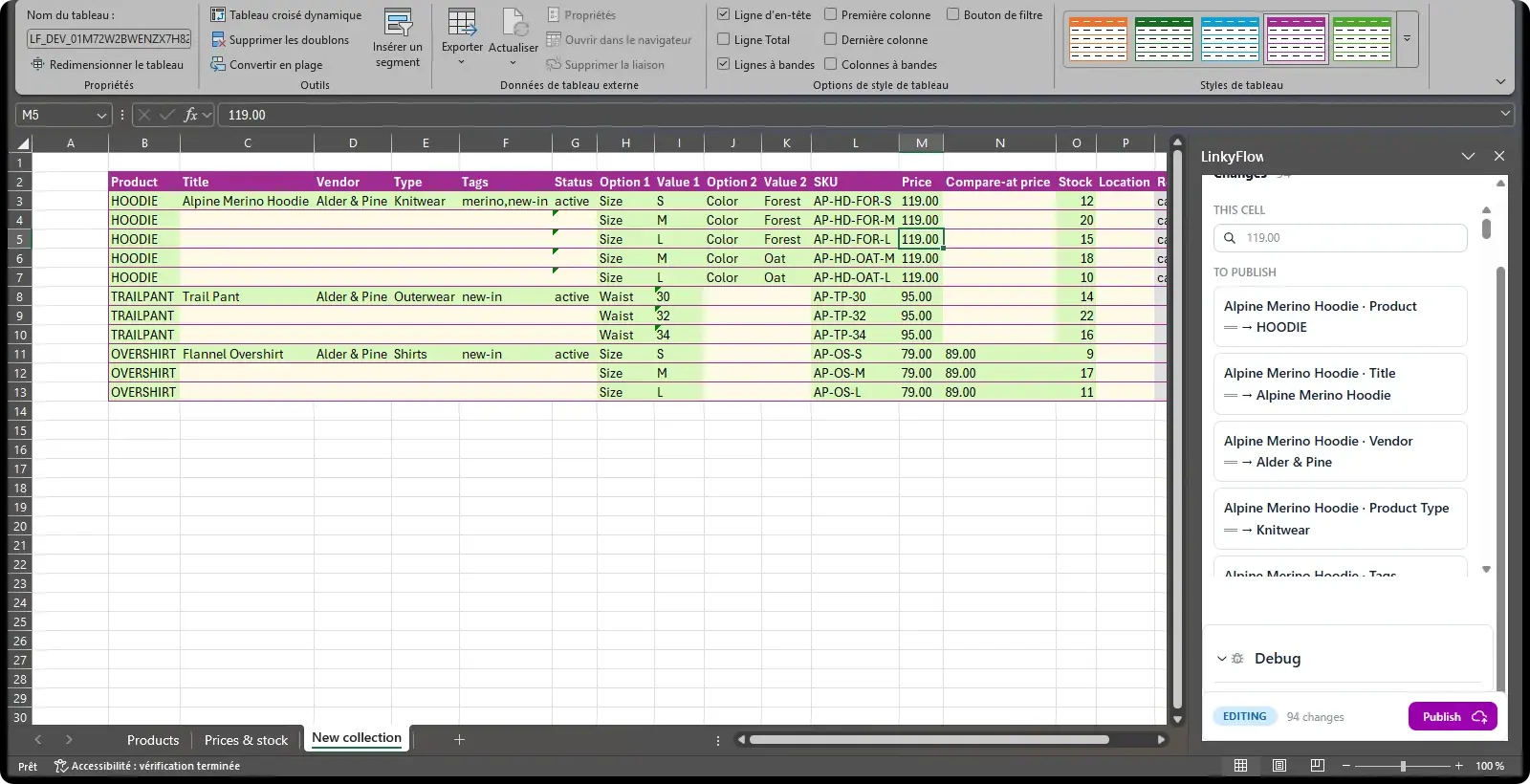
Publish creates them. Each row then shows its product, or what to fix: fix those rows and publish again, and what was already created is not sent twice. Step by step: Create your catalog from Excel.
What it does not do
- Nothing changes on its own. Every change is a cell you typed and a Publish you clicked.
- One location per Inventory Level sheet. Quantities of several locations are never added up.
- A load has a size. One load reads up to 2,000 rows on the Free plan, 25,000 on Starter and 100,000 on Pro.
- Discount codes, collections and the rest are other tables. A full seasonal run — tags, sale prices, a discount code and the clean-up — is in Black Friday on Shopify, prepared in one sheet.
Keep another store in step
If the same products sell on a second store, typing the same quantities twice is what the Inventory Stock Sync agent does for you: every hour, by exact SKU, in a mode you choose. The walkthrough is Sync stock between Shopify and WooCommerce. For list prices, the Price Sync agent does the same.
FAQ
Does anything change in my store before I click Publish? No. Edits stay in the sheet and in the Changes panel until you publish; Exit edit throws them away.
Do I need Excel? No. The LinkyFlow web app loads, edits and publishes the same way, and Export gives you a connected Excel workbook whenever you want one.
Can I compute prices with Excel formulas? Yes: compute them in a free column, then paste the values into Price or Compare At Price.
How many products can I change at once? As many as one load reads on your plan (2,000 rows on Free, 25,000 on Starter, 100,000 on Pro). A large stock publish runs as one bulk operation at Shopify; Refresh shows the result.
What happens to a value Shopify would refuse? It is turned down as you type it, with the reason, and never sent.
Get started
LinkyFlow for Shopify opens on a 53-second tutorial filmed on a real store: products loaded, a price changed and published, a stock change brought back with Refresh. Install LinkyFlow from the Shopify App Store, then install the Excel add-in.