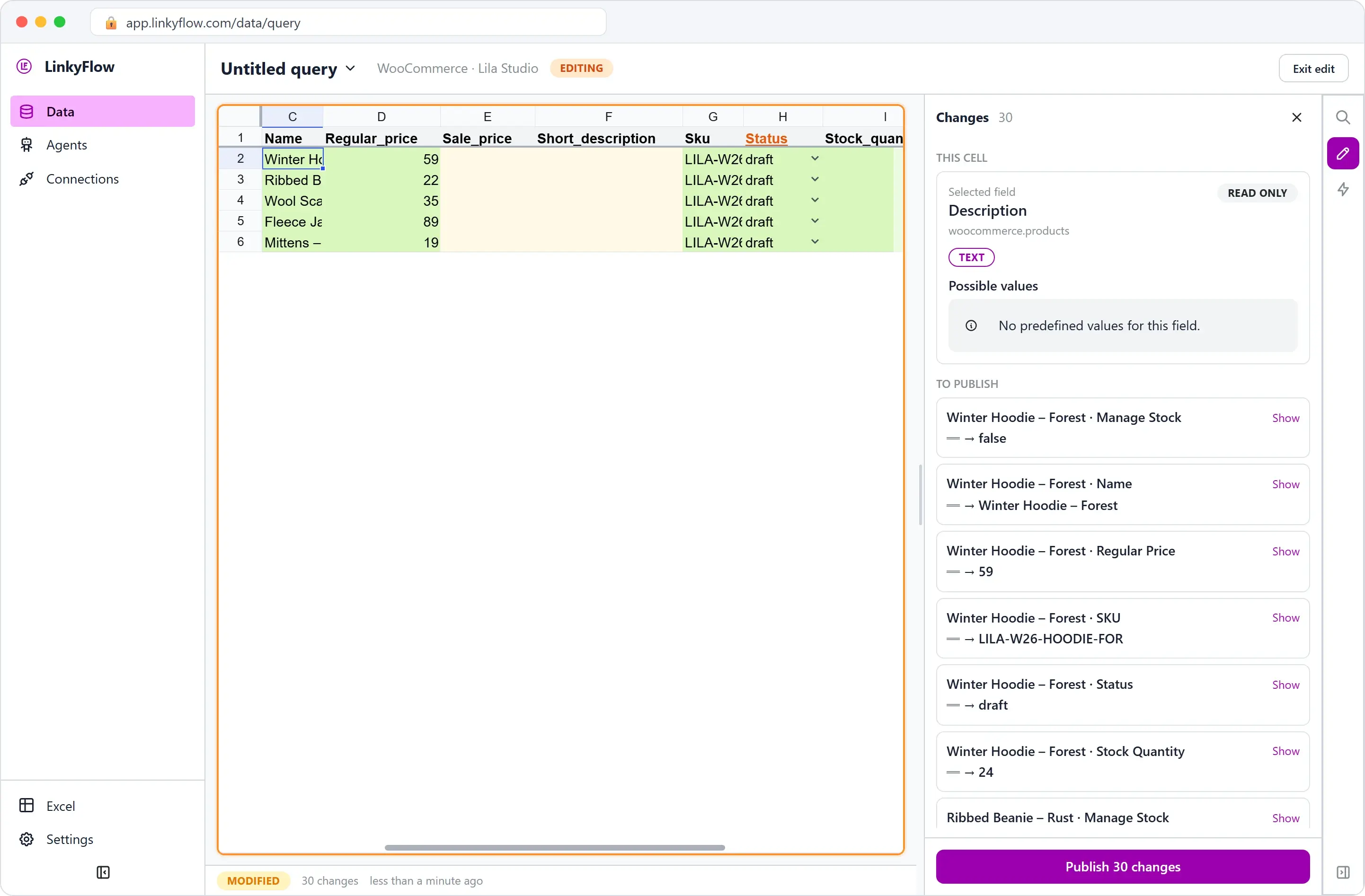
Bulk update WooCommerce stock quantities in Excel, then publish them
Load your WooCommerce Products into a sheet with LinkyFlow, in Excel through the add-in or in the web app. Type or paste the new Stock Quantity values, check each change in the Changes panel, then click Publish: LinkyFlow sends them to WooCommerce in batches and turns stock management on for every row that gets a quantity. Nothing reaches your store before that click.
This updates one store, by hand. Keeping the stock of two stores in step is the job of an agent: Sync stock between Shopify and WooCommerce by SKU.
Lila Studio, chapter 2 of 4: the delivery. The example follows Léa's demo WooCommerce shop; the screenshots show the LinkyFlow web app on demo data.
What you need
- Your store connected with a
Read/WriteREST API key: aReadkey loads the products but cannot publish (WooCommerce connection setup). - The Excel add-in, or the web app at app.linkyflow.com.
Update stock in six steps
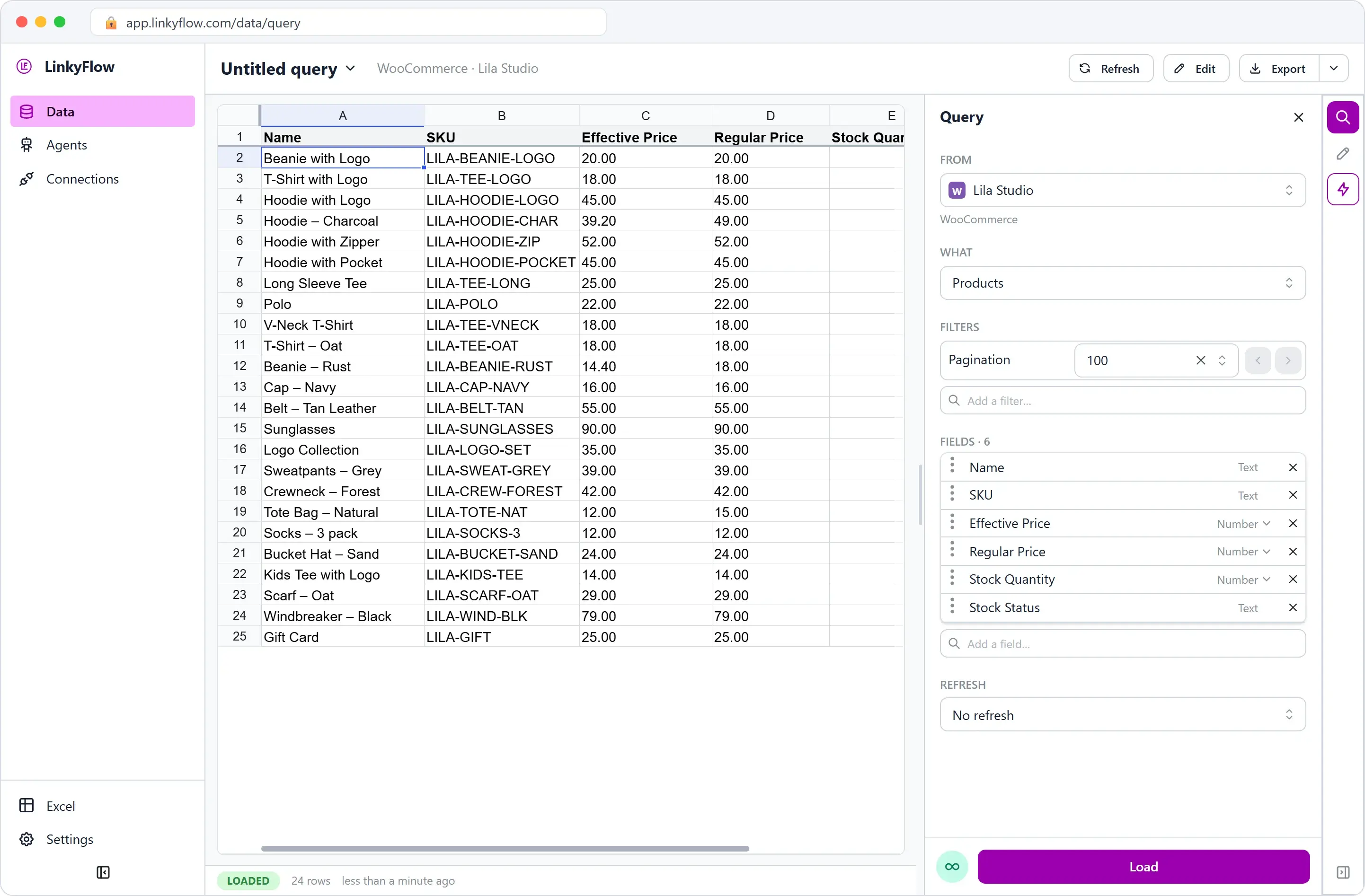
- Load the products. FROM is your store, WHAT is Products. Stock Quantity and Stock Status are among the default fields; keep Name and SKU beside them. A variable product keeps its stock on its variations: load Product Variations for that product instead.
- Filter before you load, so the sheet holds only the rows you restock: Category, SKU, Search, or Stock Status =
outofstockfor what is sold out. - Click Edit (in Excel, it is also on the LinkyFlow tab of the ribbon) and type the counts in Stock Quantity, or paste a whole column, such as your supplier's count sheet.
- Read the Changes panel. Every edit is listed by product, old value → new value. Exit edit throws them all away.
- Publish. The button says how many changes it sends. LinkyFlow groups them into WooCommerce batch calls of up to 100 items; a row WooCommerce refuses is shown with its error, and the others go through.
- Refresh to read back what WooCommerce now holds.
How WooCommerce stock works
WooCommerce only tracks a number when stock management is on for that product. Three fields are in play:
- Manage Stock: whether WooCommerce counts units at all.
- Stock Quantity: the number on hand, taken into account only when Manage Stock is on.
- Stock Status:
instock,outofstockoronbackorder.
You don't have to touch Manage Stock: when a row gets a stock quantity, LinkyFlow turns stock management on, exactly as typing a quantity in the WooCommerce admin does, and WooCommerce recomputes the stock status. To track only a status, with no count, set Manage Stock to FALSE and edit Stock Status directly (Inventory & stock management).
The Lila Studio example: a delivery to put back on sale
The van comes at 8 a.m. Sixty boxes of restock: charcoal hoodies, oat tees, navy caps, forest crewnecks, oat scarves. Léa signs for it, drags the pallet into the spare room that is still, technically, her bedroom, and faces the part of the day she dreads.
Because right now her shop is lying. The website says "out of stock" on half these items. Customers who wanted the charcoal hoodie last week gave up. Until the numbers in WooCommerce match the boxes on her floor, every one of these is a sale she's quietly turning away.
In chapter 1 she learned to see her shop in one table. Today she finds out if she can fix it from there, before her first coffee goes cold.
The old way was brutal: open the admin, find a product, edit, save, find the next product, edit, save. She'd done it before. It ate a morning and she always mistyped at least one.
She loads the stock columns
She loads Products with Name, SKU, prices, Stock Quantity and Stock Status: 24 rows, her whole shop. On a bigger catalog she would add a Category filter first, so the table holds only the restocked lines. Fewer rows, fewer ways to slip.
One click turns the table into a worksheet
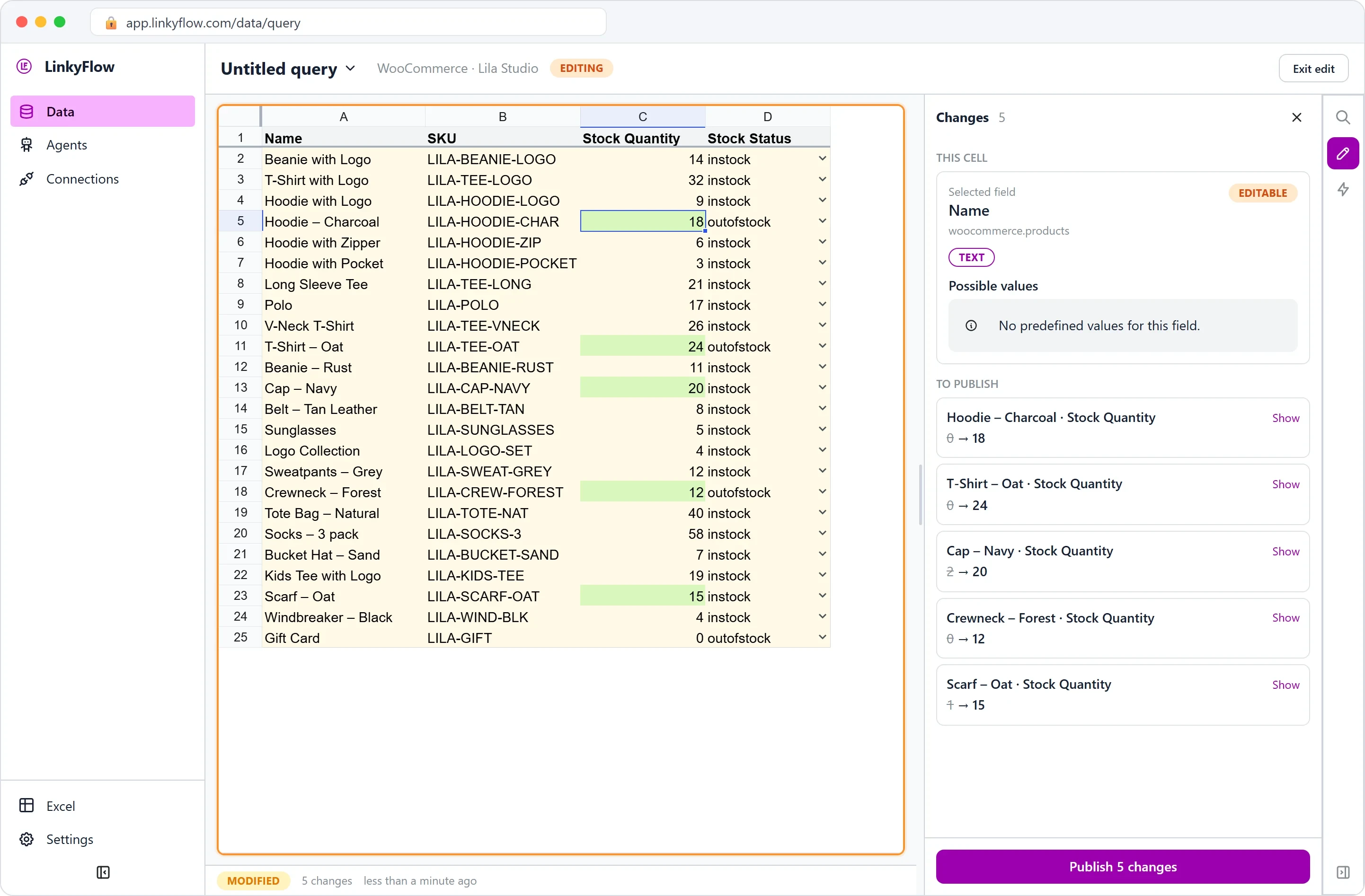
She hits Edit. The table wakes up, and the Changes panel opens on the right:
- This cell, at the top, tells her about the cell she's on: which field it is, its type, and whether it's even allowed to change.
- To publish, below, keeps a running list of every cell she touches: the old value, the new value. It's a receipt of exactly what she's about to do.
The editable cells light up. stock_quantity is a plain number. stock_status is a short menu: in stock, out of stock, on backorder.
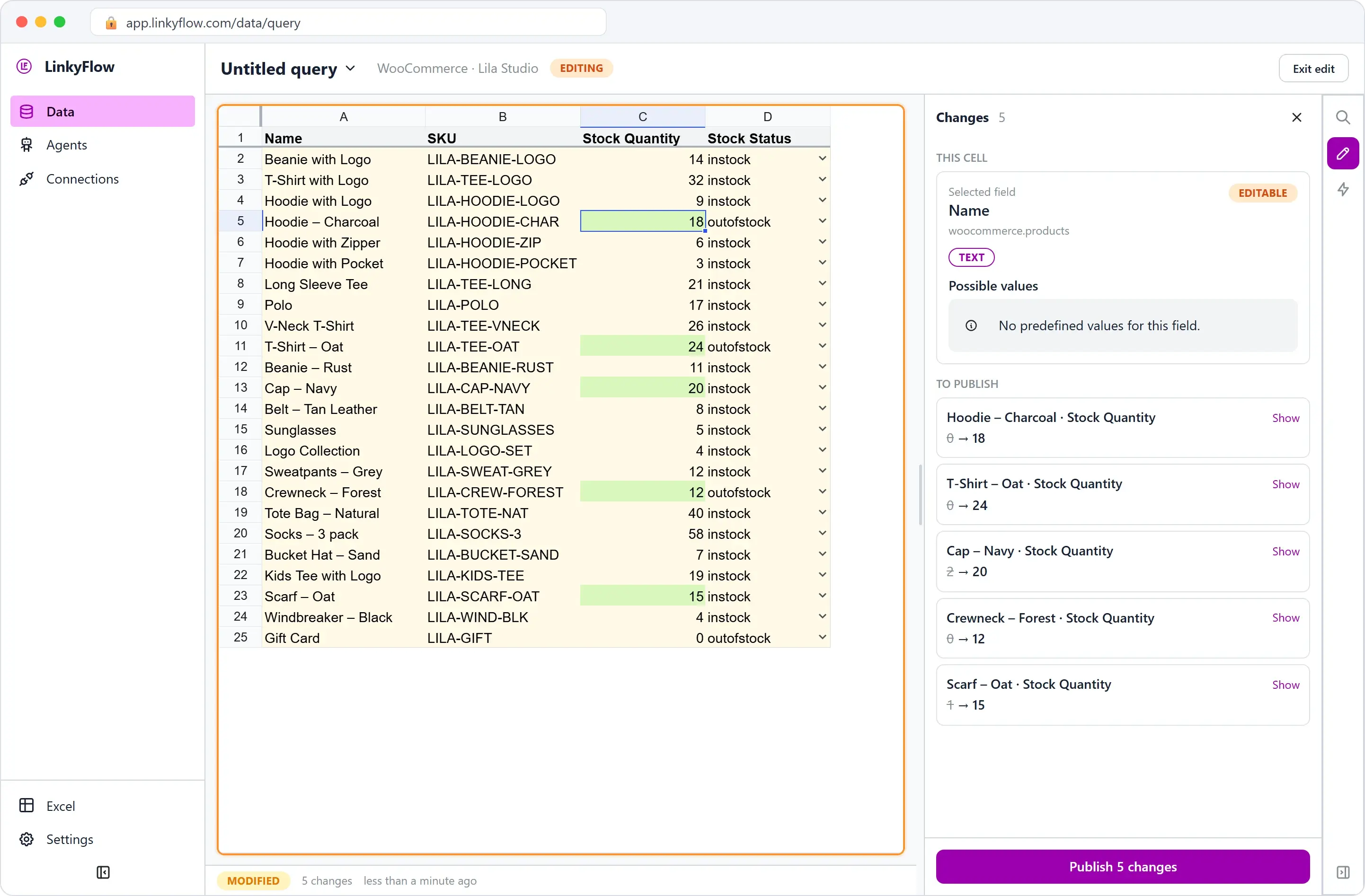
Now the boxes. She works down the column the way anyone with a clipboard would: charcoal hoodie, 18. Oat tee, 24. Navy cap, 20. Forest crewneck, 12. Oat scarf, 15. She's not clicking into anything; she's filling a column, the way she'd tally an inventory on paper.
Every number she types lands in the Changes panel as a before → after line. For the first time, she can see the morning's work as a list and check it before anything goes live.
The moment of truth
She reads down the Changes panel one last time — it's her diff, her safety net — and clicks Publish 5 changes.
The changes go to WooCommerce together, and a green Changes published. confirms it. She refreshes the table and the new quantities are sitting there. The website is no longer lying. The charcoal hoodie is buyable again.
Total time: the length of one coffee, still warm.
If a line had been refused — a mistyped value, say — that row would have shown its error and the rest would have gone through. She'd fix the one cell and publish again. No all-or-nothing.
Next time, straight from the supplier's sheet
Here's what actually changes Léa's life: her supplier sends the restock as a spreadsheet. Next delivery, she won't retype anything. She'll load Products into Excel, paste the supplier's count column onto her stock_quantity column, and publish from the same panel. The "export a CSV, remap the columns, fight the importer" ritual disappears.
The shop is honest again, the boxes are unpacked, and Lila Studio is selling more than it did yesterday: same products, true numbers. Which gives Léa a dangerous idea. If restocking took one coffee… how hard could it be to add a whole new collection? That's chapter 3, create WooCommerce products in bulk from Excel.
What it does not do
- A quantity is set, not added. WooCommerce takes the number you publish. A sale made between your Load and your Publish is overwritten by it, so load right before you count.
- It updates one store. For a second store, the Inventory Stock Sync agent compares the stock SKU by SKU every hour; the walkthrough is Sync stock between Shopify and WooCommerce by SKU.
- Nothing changes on its own. Every change is a cell you typed and a Publish you clicked.
FAQ
Does it work for variable products? Yes, through Product Variations: load the variations of a product and edit each one's Stock Quantity, the same way.
Do I have to turn on Manage Stock first? No. A row that gets a quantity has stock management turned on by LinkyFlow, as the WooCommerce admin does.
Can I change prices in the same sheet? Yes: Regular Price and Sale Price are editable on Products; the displayed price is computed by WooCommerce (Catalog & bulk pricing).
Get started
LinkyFlow for WooCommerce shows the edit-and-publish flow and the three setup steps. Create a Read/Write key and connect your store (setup guide), then install the Excel add-in: the Free plan connects one store.