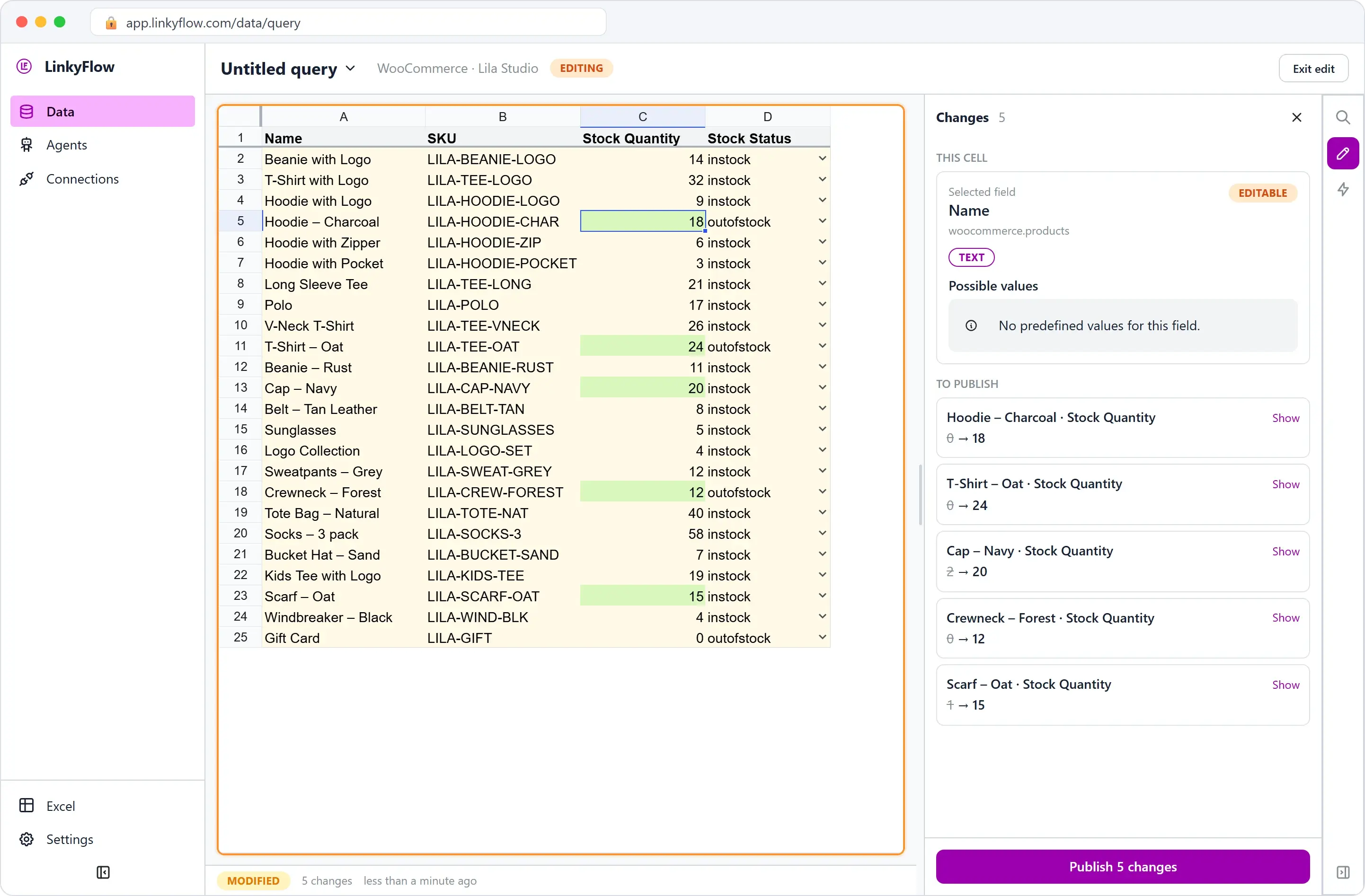
Read your WooCommerce store in Excel: products, orders, customers, sales
LinkyFlow loads your WooCommerce store into a sheet: in Excel through the add-in, or in the LinkyFlow web app. Pick the store under FROM, what to read under WHAT (products, orders, customers, coupons, a sales report: 36 tables in all), filter, and click Load. Reading changes nothing in your store, Refresh reads it again whenever you want, and there is no CSV to export.
Lila Studio, chapter 1 of 4: the morning Léa saw her whole shop at once. The example follows Léa's demo WooCommerce shop; the screenshots show the LinkyFlow web app on demo data.
What you need
- Your WooCommerce store, served over HTTPS, connected with a REST API key. A
Readkey is enough for everything on this page: WooCommerce connection setup. - The Excel add-in, or the web app at app.linkyflow.com. Both have the same Query panel.
Load WooCommerce data in four steps
- FROM: your WooCommerce store. With a single connection, it is filled in for you.
- WHAT: the table to read, Products to start with.
- FILTERS and FIELDS: narrow the rows before loading, and keep the columns you need; Add a field… searches all the others.
- Load. In Excel the rows land in the worksheet. In the web app they land in the table, and Export turns it into an Excel workbook that stays connected (Export and sync to Excel).
Which table answers which question
| To see | Load in WHAT | Filters worth knowing |
|---|---|---|
| Catalog, prices, stock | Products; Product Variations for the sizes and colours of a variable product | Status, Category, SKU, Stock Status, Search |
| How the catalog is sorted | Categories, Tags, Brands, Attributes and their terms, Reviews | Search |
| What came in | Orders, then the Refunds and Order Notes of an order | Status, Customer, After, Before |
| Who buys | Customers: email, orders count, total spent | Role (customers only by default), Email, Search |
| How the shop is doing | Sales Report, Top Sellers, and the order, product, customer and coupon totals | a date range |
| Offers | Coupons: code, type, amount, expiry, usage count | Search |
| How the store is set up | Tax rates, shipping zones, payment gateways, store settings, webhooks | — |
Every field of every table is listed in the WooCommerce connection reference.
The story: from eleven tabs to one table
Léa opened Lila Studio out of her spare room. It started as a few logo beanies she printed for friends, and somehow turned into a real WooCommerce shop: tees, hoodies, caps, a "Logo Collection" she's quietly proud of. Orders now arrive while she sleeps.
The problem isn't sales. It's mornings.
Every day starts the same way. She opens her store admin, clicks Products to check what's running low. Opens a new tab for Orders to see what came in overnight. Another tab for Customers to recognise a repeat buyer. A reports page somewhere for yesterday's revenue. By 9:15 she has eleven tabs open and still doesn't have the one thing she wants: a single view of her shop.
This is the story of how Léa got that view, then learned to run the whole shop from it. Four chapters:
- Read the shop (you're here): products, orders, customers and sales in one table.
- Bulk update WooCommerce stock quantities: the day a delivery arrives.
- Create WooCommerce products in bulk: a new collection from a supplier's sheet.
- Create WooCommerce coupons in bulk: launch weekend's codes in one column.
Her first table: the whole catalog
A friend tells her about LinkyFlow, a way to talk to WooCommerce from a spreadsheet. She's skeptical (she's seen "Excel integrations" before), but it takes about a minute: Lila Studio under From, Products under What, Load, and her catalog appears as a clean table.
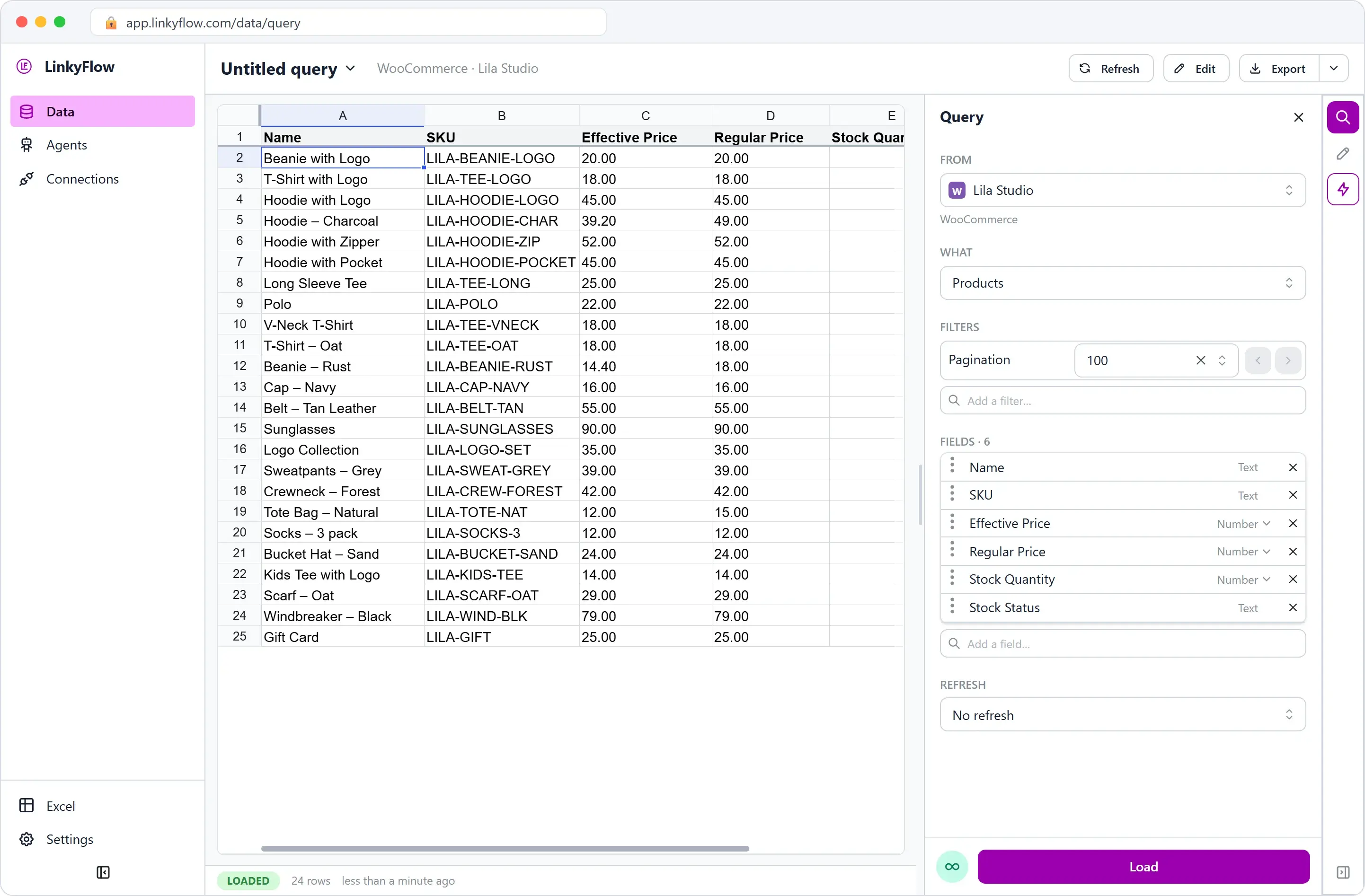
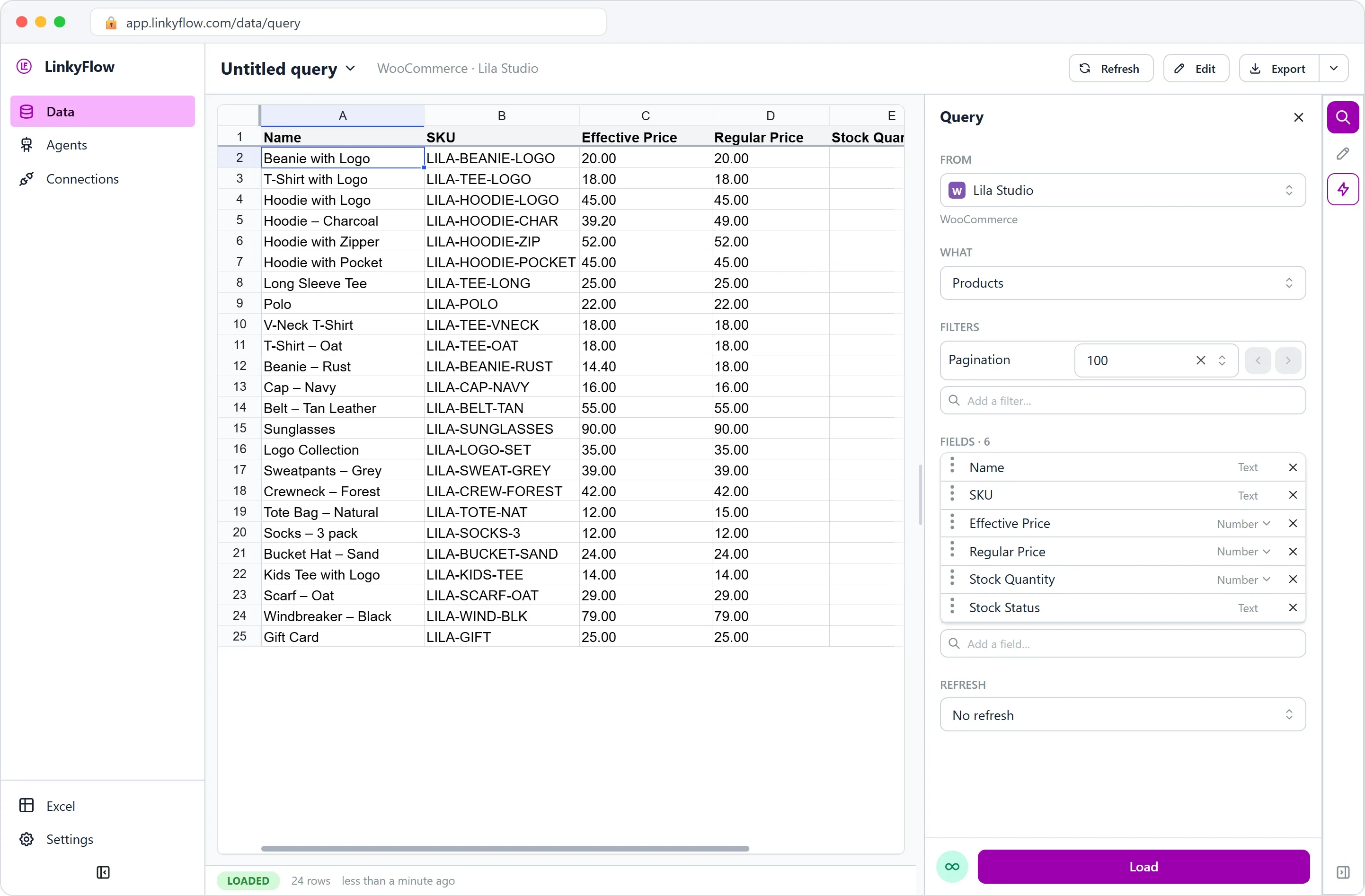
There it is. Every product — the Beanie with Logo, the T-Shirt with Logo, the hoodies — with its price, its SKU, and crucially its stock quantity and stock status, all on one screen. No clicking into each product. 24 rows, the whole shop, in front of her.
On the right, the Query panel holds the controls she'll come to live in: From (her store — it filled in by itself, she only has one), What, Filters with the pagination and Add a filter…, and Fields, the columns she wants, with Add a field… to search any other. She can drop the ones she doesn't care about before loading.
And — this is the part that makes her laugh — the exact same panel runs inside Excel. The screenshots in this story are from the web app, but Léa does most of this in a spreadsheet, because that's where her formulas already live. Same three moves: Lila Studio → Products → Load, and the rows land in a worksheet.
Orders, customers and the sales report
Once she gets it, she can't stop. Each thing she used to open a tab for is just a query she loads into the same kind of table.
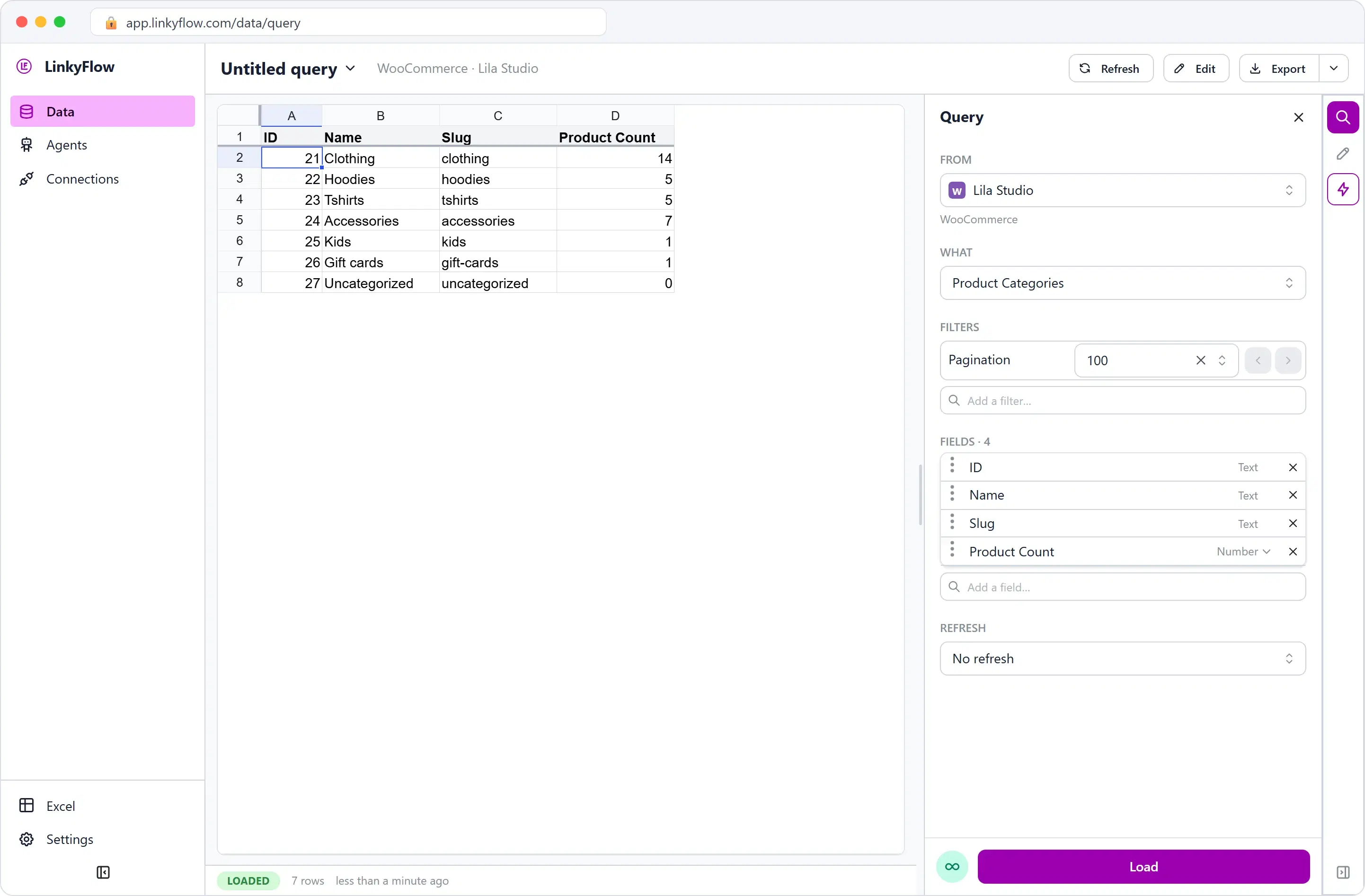
Her catalog is more than a product list: categories, tags, brands, variations (the per-size versions of her hoodies), attributes like colour and size, even the reviews customers leave.
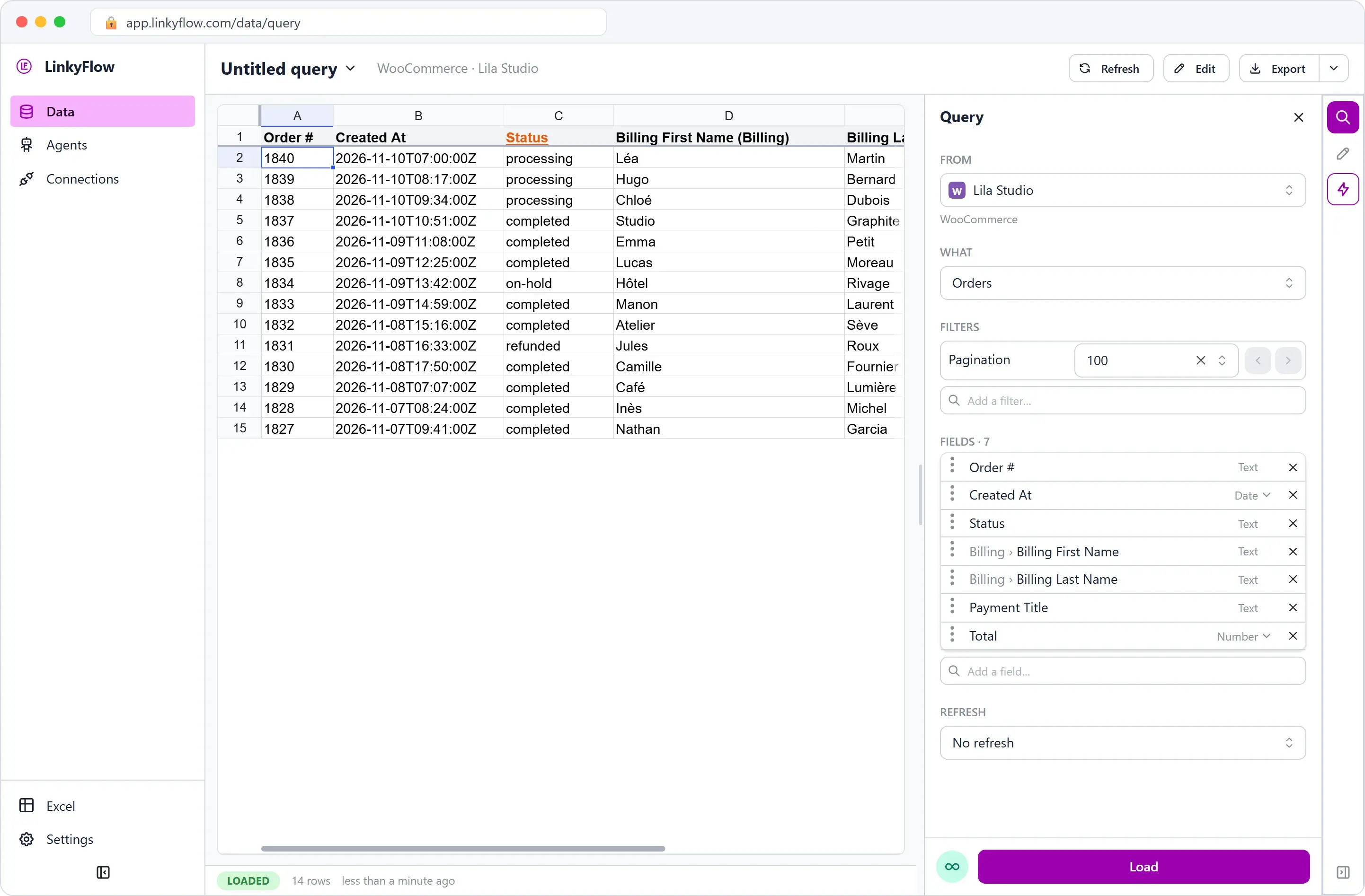
The sales side is where she lingers. Orders, with number, date, status, the buyer's name, payment method and total.
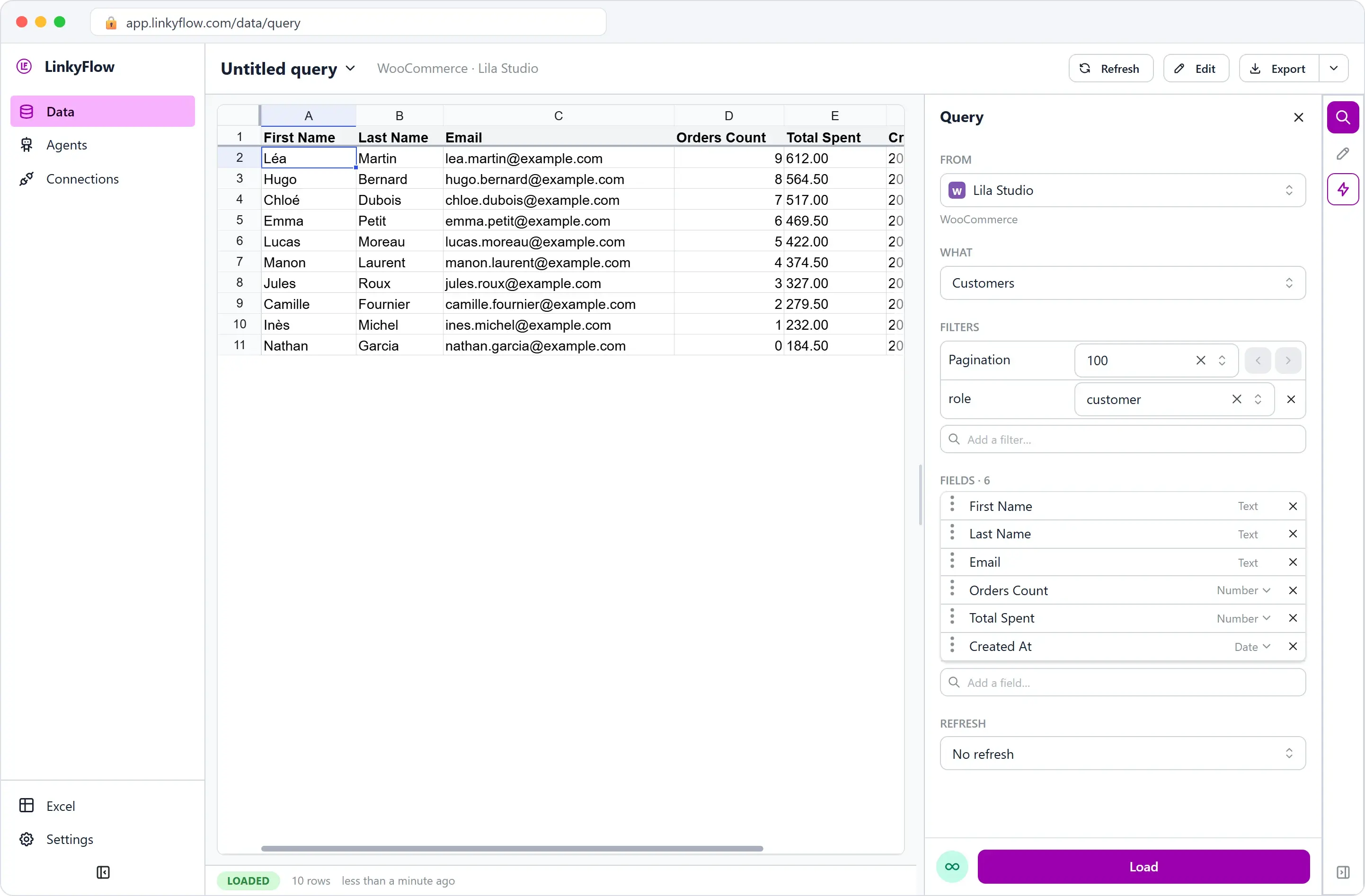
And the customers behind them: email, how many orders they've placed, how much they've spent. (By default it shows shoppers, not admin accounts, which is exactly what she wanted.)
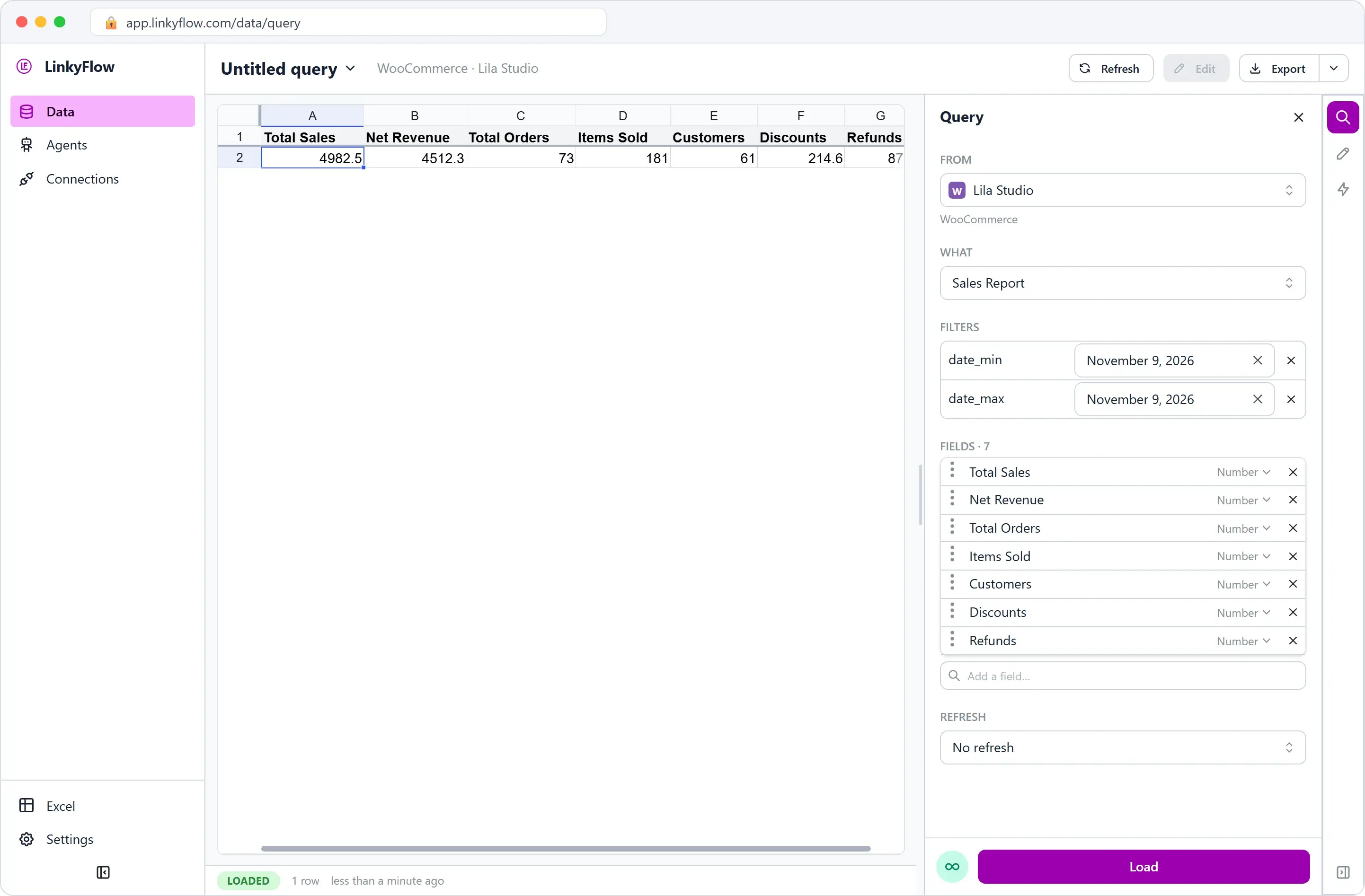
Then the numbers she used to hunt for in a plugin: a Sales Report for any date range — total sales, net revenue, orders, items sold, customers, discounts, refunds. One row that tells her how the shop is doing.
There's more she pokes at over her coffee: coupons, top sellers, tax rates, shipping zones, payment gateways, even the store settings. All of it readable, all of it a table she can drop next to the formulas she already trusts. No CSV exports. No copy-paste.
Load only what matters
Her shop is small now, but she's thinking ahead. Two controls keep it fast when it grows:
- Filters: only the products in one category, only last week's orders, before loading.
- Pagination: up to 100 rows a page, or All results for the whole table in one fetch.
Load less, move faster. Her morning ritual just went from eleven tabs to one table.
Reading changes nothing
Here's what Léa likes most about chapter one: she changed nothing. Reading is the safe half. She looked at her entire shop and her shop didn't even notice.
But a table you can only read is half a tool. The next morning, a delivery van pulls up with sixty boxes, and she's about to find out whether this thing can actually change her shop, not just show it: chapter 2, bulk update WooCommerce stock quantities in Excel.
FAQ
Can I export WooCommerce orders to Excel? Yes. Load Orders with a status or date filter, in Excel directly, or in the web app and then Export. The workbook stays connected: Refresh brings in the new orders instead of a new export.
Does reading change anything in my store?
No. Nothing is written to WooCommerce until you click Edit, change cells and click Publish, and a Read key cannot write at all.
How many rows can one load read? 100 rows a page, or every row with All results, up to your plan's limit per query: 2,000 rows on Free, 25,000 on Starter, 100,000 on Pro.
Can it keep WooCommerce in step with another store? That is an agent's job, not a sheet's: Sync stock between Shopify and WooCommerce by SKU.
Get started
LinkyFlow for WooCommerce lists every WooCommerce resource and the three setup steps. Connect your store with a REST API key (setup guide), install the Excel add-in, and load Products: the Free plan connects one store. For a weekly sales review, see the sales & orders dashboard; for the catalog, catalog & bulk pricing.