Create WooCommerce products in bulk from an Excel sheet
In LinkyFlow, open WHAT, go to its last group, Create, and pick Create Product: the sheet becomes an empty template, one column per field a new product takes. Fill one row per product (name, regular price, SKU, status, opening stock), check the rows in the Changes panel, and click Publish: each row becomes a WooCommerce product. There is no CSV template to match and no import plugin, and a draft status keeps the new products off your shop until you are ready.
Lila Studio, chapter 3 of 4: the new collection. The example follows Léa's demo WooCommerce shop; the screenshots show the LinkyFlow web app on demo data.
What you need
- Your store connected with a
Read/WriteREST API key (WooCommerce connection setup). - The Excel add-in, or the web app at app.linkyflow.com.
The columns of Create Product
| Column | What to type |
|---|---|
name | what the customer sees; the only required column |
type | simple when left empty; otherwise grouped, external or variable |
status | draft to stage the product quietly, publish to put it on sale, or pending, private |
regular_price, sale_price | the list price, and a sale price if one runs |
sku | your own code |
manage_stock, stock_quantity, stock_status | the opening stock: a quantity turns stock management on, unless manage_stock says FALSE |
weight, short_description, description | as on the product page |
Create products in five steps
- FROM is your store; in WHAT, scroll past the tables you read to the last group, Create, and pick Create Product.
- Fill the rows: type them, or paste columns from your supplier's file. In Excel, compute values in a free column — a SKU, a retail price from a wholesale one — then paste them into the template.
- Read the Changes panel: each filled cell is a pending change, and nothing has left your sheet yet.
- Publish. Each row becomes a product, sent in WooCommerce batch calls of up to 100; a row WooCommerce refuses is shown with its error, and the others are created.
- Load Products with Status =
draftto see the new products with the IDs WooCommerce gave them. When you are ready, change theirstatustopublishin that sheet and publish again.
The Lila Studio example: a winter range from a supplier's sheet
It's the spreadsheet that starts it.
A supplier Léa likes sends over a winter range: a forest-green hoodie, a ribbed beanie, a wool scarf she's a little in love with, a fleece jacket and mittens. It arrives, as these things always do, as an Excel file. Names in one column, wholesale prices in another, her own retail prices pencilled in beside them.
In the old world, that's a trip through the admin's "Add product" screen for each piece: type the name, set the price, pick a status, save, start again. And she's been burned by the other route too — exporting a CSV template, reshaping her file to match its columns, feeding it to an importer, and decoding whatever it complained about.
But after the delivery, she has a hunch. If she could edit her stock in rows… could she create products the same way?
From reading to a blank template
So far she's loaded existing things. Creating is the mirror image: instead of pulling data down, she asks LinkyFlow for an empty template shaped like a product, fills it, and pushes it up.
She opens What and scrolls past the things she reads to its last group, Create. Every kind of record she can add is there; she picks Create Product, and up comes a blank grid, the product fields as columns, waiting.
One row, one product
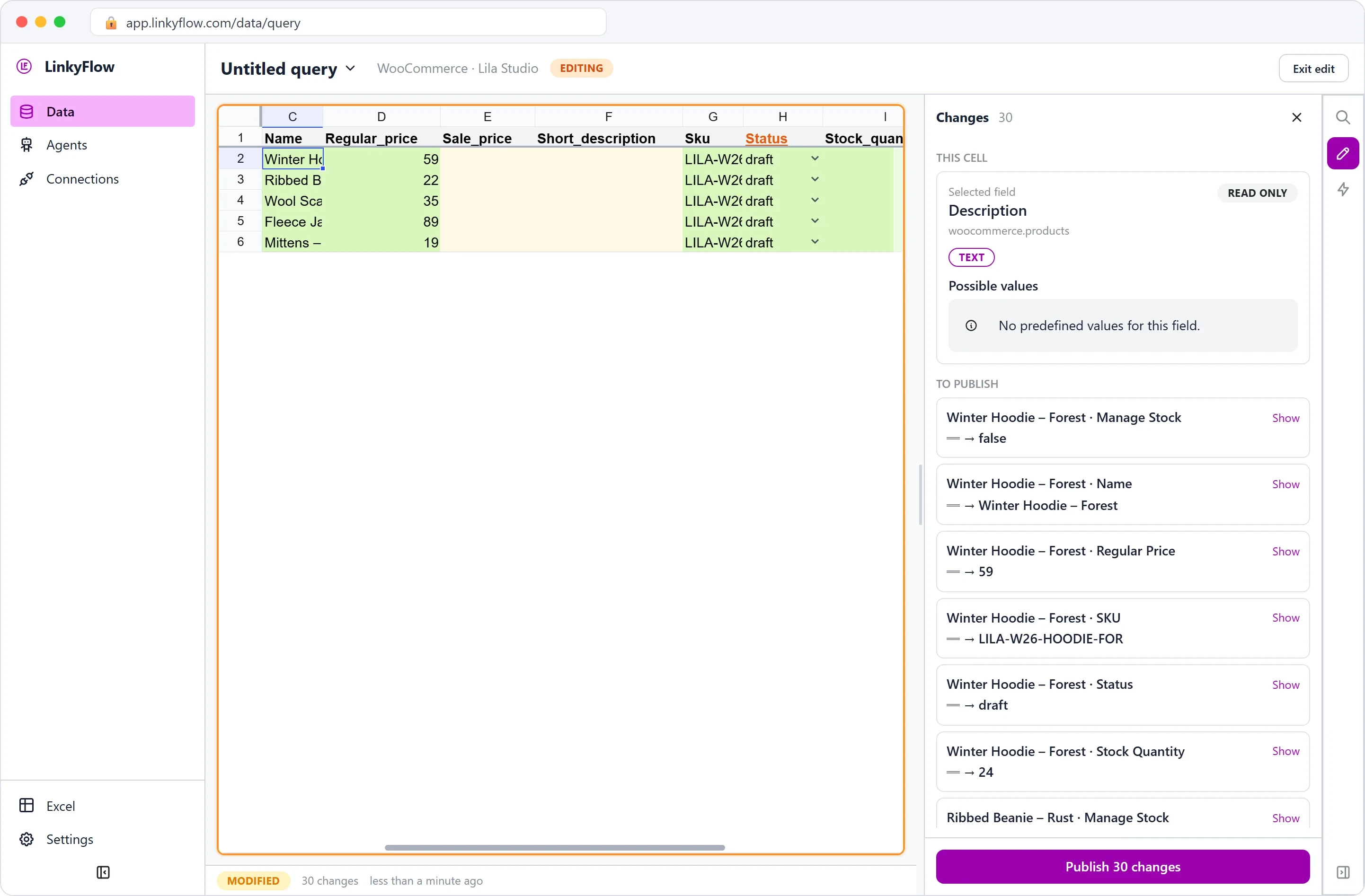
Her supplier's file is already a table. Names down one column, prices down the next: the shape the template wants. She lines them up and fills the rows — the winter hoodie, the ribbed beanie, the scarf, the fleece, the mittens — each on its own line, each with a price, a SKU and an opening stock count.
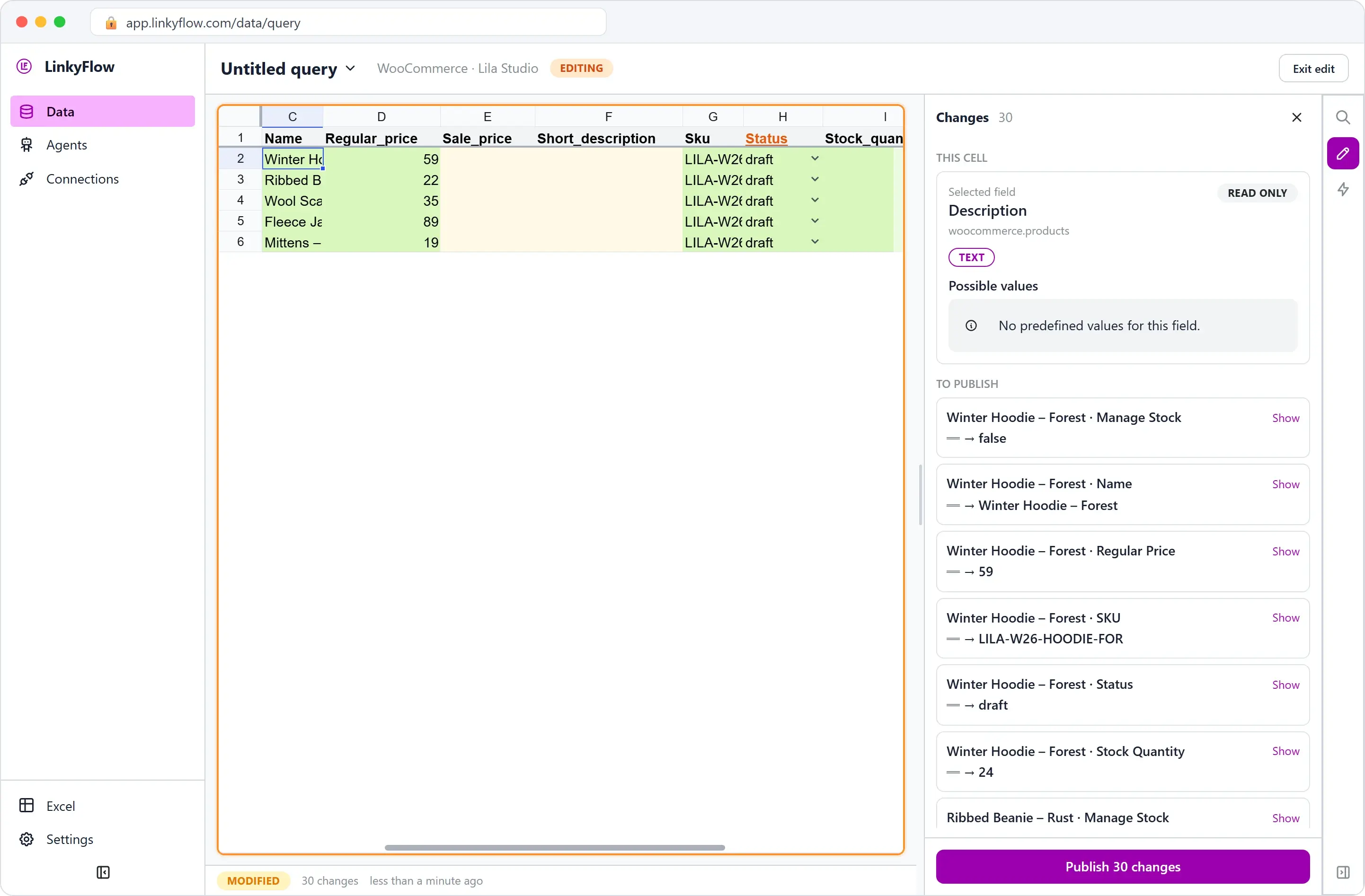
The Changes panel logs every new value as a pending change, and the table badge reads MODIFIED: nothing has left her laptop yet. The panel's This cell confirms what each field is as she clicks across. She sets the whole range to draft, because she wants to eyeball it before customers do.
Publish, and the collection exists
She clicks Publish. Every filled row becomes a real product in WooCommerce, and the Changes published. toast appears again. She loads Products filtered on draft, and there they are, with the IDs WooCommerce just gave them.
Had she left a name blank, that row would have shown its error and the others would have been created anyway. She didn't, this time. A whole range, drafted, in one publish.
Later, when she's happy, flipping them from draft to publish is just another edit: load the range, change the status column, publish. The window-display moment is hers to choose.
The part she'll repeat every season
The source was a spreadsheet, and so was the work. Next season's range will arrive the same way, and Léa won't open the "Add product" screen once. She'll paste the supplier's file into the template, build her SKUs with a formula in a spare column, paste them in, and publish.
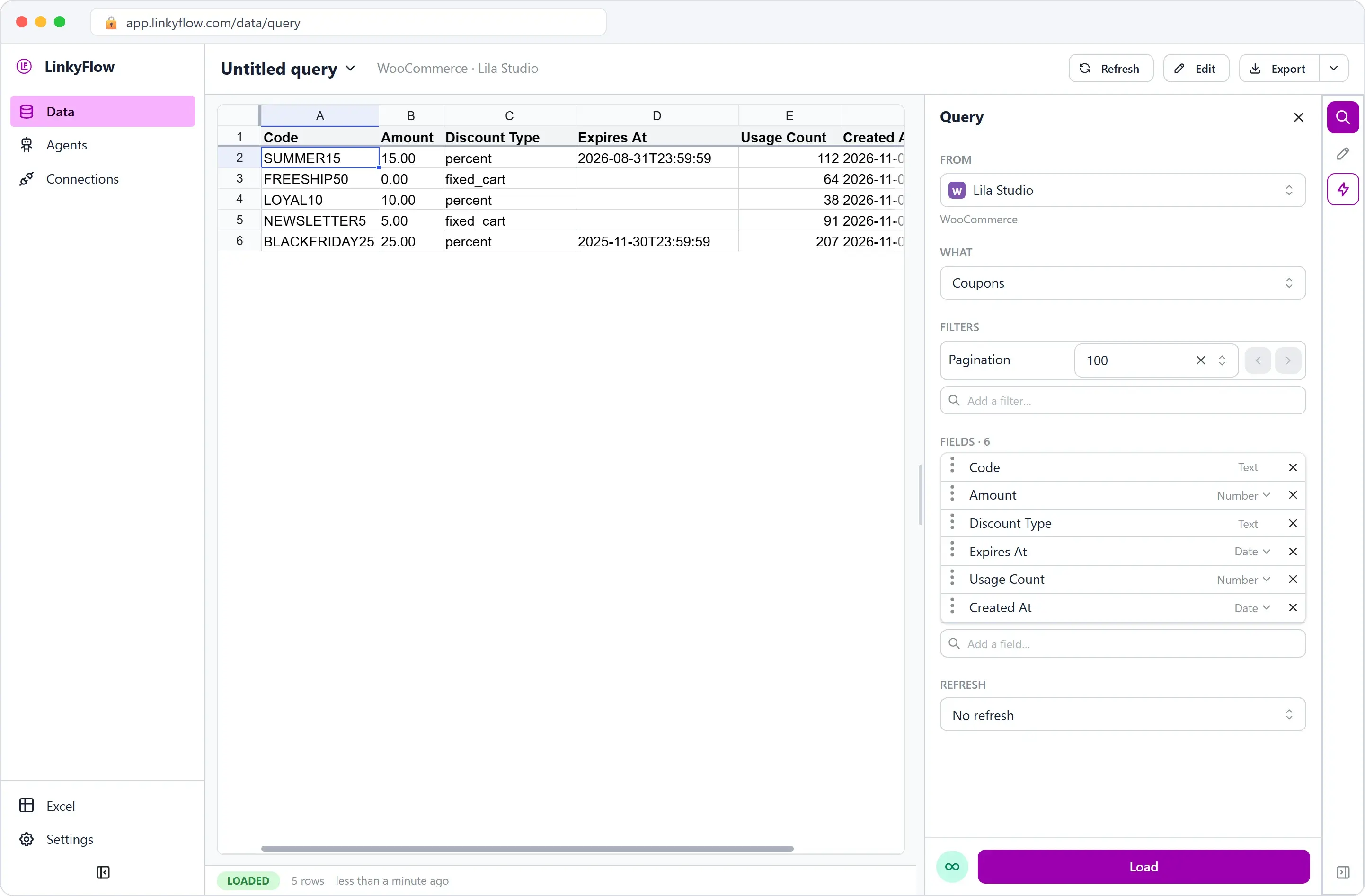
Léa now reads her shop, fixes her shop, and grows her shop, all from the same table. Which leaves one thing she's never done well: selling hard. Launch weekend is coming, and a launch needs offers: chapter 4, create WooCommerce coupons in bulk from Excel.
Beyond simple products
- Variations: Create Variation adds a variation — its SKU, prices and stock — under an existing variable product. Its size or colour is not a column of the template: set the attributes up in WooCommerce.
- Categories, tags, brands, attributes and their terms, shipping classes: each has its own Create template, to set up the shelves the new range goes on (Catalog & bulk pricing).
What it does not do
- Categories and images are not columns of Create Product. Put a new product in its category, and give it its photos, in WooCommerce.
- No CSV import. The rows go through WooCommerce's REST API, the way the admin would create them one by one.
- Nothing is created before Publish. Until then the rows are pending changes; Exit edit drops them.
FAQ
Can I import products into WooCommerce from an Excel file? Yes, without a CSV: open the Create Product template, paste the columns of your file into it, and publish.
Do new products go live straight away?
Only those whose status is publish. Type draft to review them first, then change the status and publish again.
Can I set the opening stock?
Yes: type it in stock_quantity. Leave manage_stock empty or set it to TRUE: a FALSE there wins, and WooCommerce then ignores the quantity (Inventory & stock management).
Get started
LinkyFlow for WooCommerce lists every WooCommerce resource you can create and the three setup steps. Connect your store with a Read/Write key (setup guide), then install the Excel add-in: the Free plan connects one store.