
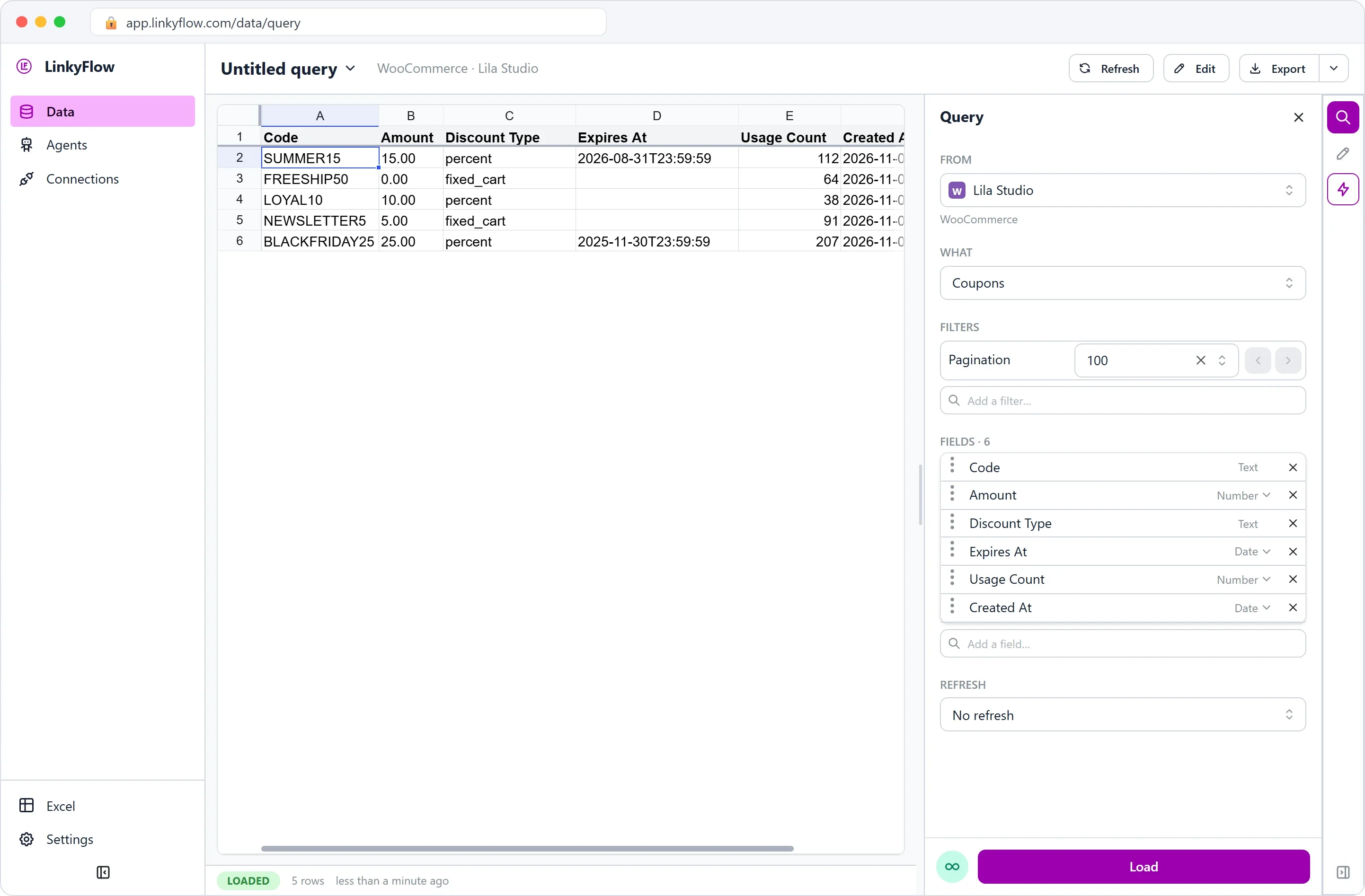
Create WooCommerce coupon codes in bulk from Excel
In LinkyFlow, open WHAT, go to its last group, Create, and pick Create Coupon. Fill one row per code: code, discount_type (percent, fixed_cart or fixed_product), amount, and if you want them, an expiry, a usage limit, a minimum spend and whether it can be combined. Click Publish: each row becomes a WooCommerce coupon. Then load Coupons to see how many times each code has been used.
Lila Studio, chapter 4 of 4: launch weekend. The example follows Léa's demo WooCommerce shop; the screenshots show the LinkyFlow web app on demo data.
What you need
- Your store connected with a
Read/WriteREST API key (WooCommerce connection setup). - The Excel add-in, or the web app at app.linkyflow.com.
The columns of Create Coupon
| Column | What it does |
|---|---|
code (required) | what the customer types at checkout, e.g. WINTER10 |
discount_type (required) | percent, fixed_cart (off the cart total) or fixed_product (off each product) |
amount | 10 is 10 % on a percent code, or 10 in your currency on a fixed one |
date_expires | when it stops working |
usage_limit | how many times it can be redeemed in all |
minimum_amount | the cart total it needs |
individual_use | TRUE: it cannot be combined with other codes |
Create coupons in five steps
- Load Coupons first (FROM your store, WHAT Coupons) to see the codes that already exist, so you don't reuse one.
- In WHAT, go to the Create group and pick Create Coupon: a blank grid, one column per field above.
- Fill the rows. For a series of unique codes, build them in a free column with a formula, such as
="LILA-"&UPPER(A2), paste the values intocode, and fill the type, amount and limit down every row. - Read the Changes panel, then Publish. The rows go out in WooCommerce batch calls; a row WooCommerce refuses is shown with its error, and the others are created.
- Load Coupons again: the new codes are there, and Usage Count tells you, as the days go by, how many times each one has been used.
Change a coupon later
Load Coupons and click Edit: the code, the discount type, the amount, the expiry and the usage limit can be changed and published. The minimum spend and individual use are set when the coupon is created; change them in WooCommerce afterwards.
A promotion with no code is a price, not a coupon: edit Sale Price on Products and publish (Catalog & bulk pricing).
The Lila Studio example: launch weekend
The winter collection goes live Saturday. Léa has the products (chapter 3), the stock (chapter 2), and for the first time, the nerve to actually push a launch.
A launch needs offers. Not one — several:
- a public code for the newsletter: 10% off the weekend.
- a little welcome discount for first-time buyers.
- and the ambitious one: a unique code for each of the thirty micro-influencers she's sending a scarf to, so she can see whose audience actually shows up.
Thirty-two coupons. In the WooCommerce admin that's thirty-two trips through the "Add coupon" form, each with a code, a type, an amount, an expiry. By Thursday night she'd hate the collection. She knows there's a better way now, because by chapter four, the better way is just the way.
Look before you leap
Old habit, good habit: before creating, she loads what's already there so she doesn't reuse a code by accident. Lila Studio → Coupons → Load.
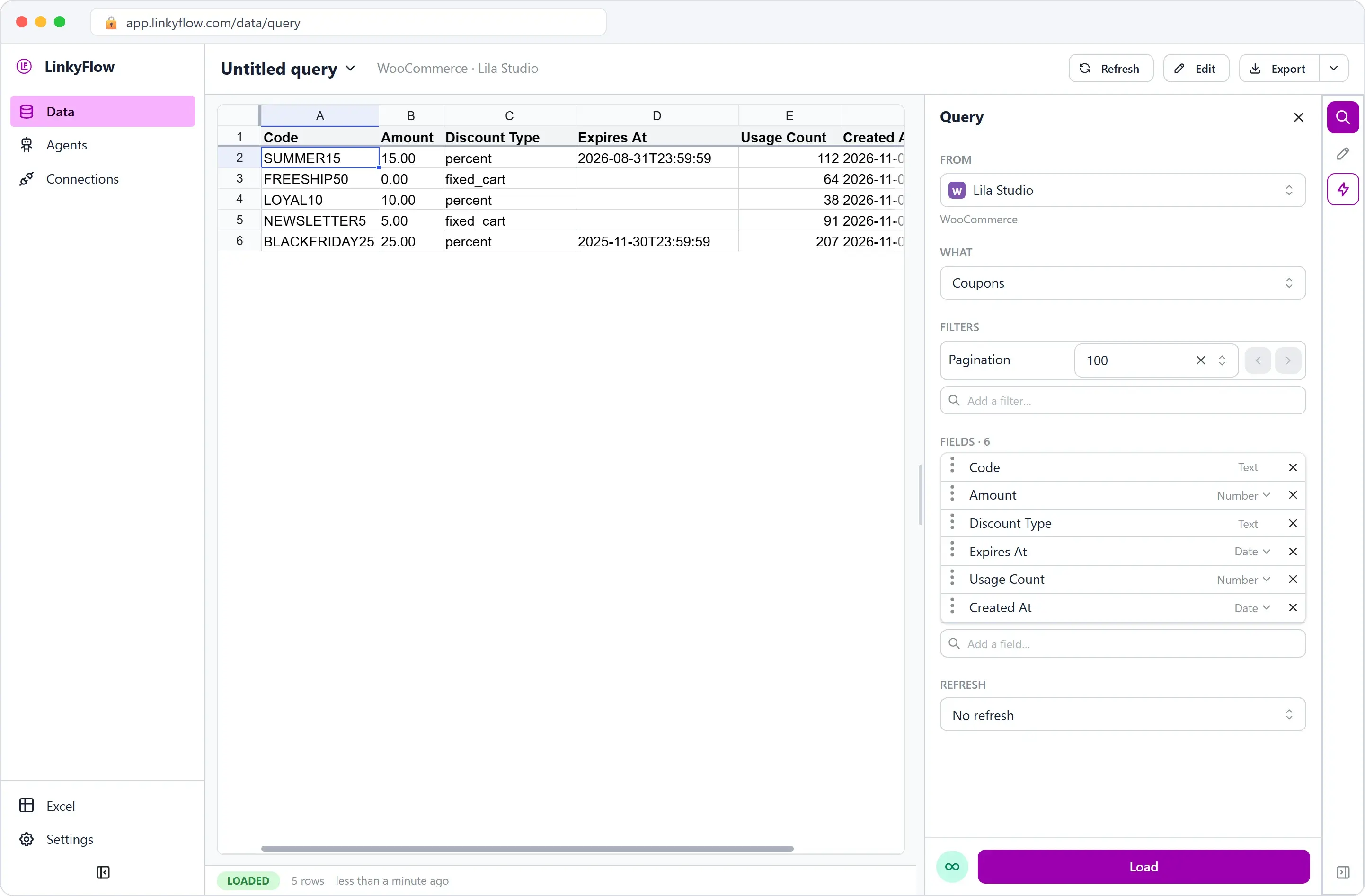
One tidy table: codes, amounts, types, expiries, how often each was used. She scans it, confirms WINTER10 is free, and moves on. (That read-then-write rhythm is the same one she's had since chapter 1.)
The wall of coupons
She opens What again and picks Create Coupon, in its last group, Create. Blank grid, coupon fields as columns. And now the spreadsheet does the thing spreadsheets are for.
The two simple ones she just types:
code: WINTER10   | discount_type: percent     | amount: 10 | date_expires: 2026-12-07 | usage_limit: 1000
code: WELCOME5   | discount_type: fixed_cart  | amount: 5  | minimum_amount: 35       | individual_use: true
WINTER10: 10% off, dies Sunday night, capped so a screenshot leak can't drain it. WELCOME5: €5 off a €35 cart, and individual_use so it won't stack on top of the weekend code.
Then the influencers. Thirty unique codes would be a nightmare by hand, but it's a column, and columns are easy. She drops her list of thirty names beside the grid, builds LILA- + each name with a formula, pastes the codes in, fills the type and amount down all thirty rows in one drag, and just like that she has thirty distinct codes she can track one by one.
code: LILA-MAYA   | discount_type: percent | amount: 15 | usage_limit: 50
code: LILA-NOAH   | discount_type: percent | amount: 15 | usage_limit: 50
code: LILA-INES   | discount_type: percent | amount: 15 | usage_limit: 50
...
Thirty-two coupons, sitting in rows, none of them live yet.
One publish
She clicks Publish. Every row becomes a real coupon in WooCommerce, and the familiar Changes published. confirms it. She reloads Coupons and there they all are — WINTER10, WELCOME5, and the thirty LILA- codes — ready to paste into a newsletter and thirty messages.
Had a code been refused, that row would have shown its error and the rest would have been created. It wasn't. The whole campaign existed in about the time it takes to write one coupon by hand.
Next Monday, she'll do the thing she couldn't do before: load Coupons, sort by Usage Count, and see whose code actually sold. Maya's was used twelve times; half the list, never. That's not a guess anymore — it's a column.
The same trick, in Excel, every launch
Léa built the influencer wall in Excel — names, a formula, a drag — and published from the same panel. A campaign that would be a slog in the admin became a column she filled once. For the next sale, she'll duplicate the sheet, change the codes, and publish.
Four chapters later
Look back at Léa's week. She started buried under eleven browser tabs, unable to even see her shop. By Saturday she can:
- read her WooCommerce store in Excel: products, orders, customers, sales, in one table;
- bulk update stock quantities for a whole delivery in the time of one coffee;
- create products in bulk from a supplier's file;
- create coupon codes in bulk, a wall of offers in one column.
Same shop, same spreadsheet she always loved, now wired to WooCommerce, every change published over its REST API. No CSV round-trips. No import plugins. No eleven tabs.
FAQ
Can I create unique WooCommerce coupon codes in bulk? Yes: one row per code in the Create Coupon template, built with a formula if you like, then one Publish.
Can I change a coupon after creating it? Yes: its code, discount type, amount, expiry and usage limit, from the Coupons sheet. The minimum spend and individual use are set at creation.
How do I see which codes were used? Load Coupons with Usage Count, and sort it. The Coupon Totals report counts the coupons by type.
Get started
LinkyFlow for WooCommerce lists every WooCommerce resource and the three setup steps; coupons and customers are covered in Customers & coupons. Connect your store with a Read/Write key (setup guide), then install the Excel add-in: the Free plan connects one store. New to the series? Start where Léa did: read your WooCommerce store in Excel.